
How to Set Up Your Masjidbox Player
The Masjidbox player is a plug-and-play hardware device that connects to any HDMI TV to display your prayer times, announcements, and events. Setup takes about 5 minutes.
You'll need an HDMI TV and either an Ethernet cable or WiFi network. Internet connection is required for initial setup and updates.
Connect the HDMI cable from the player to your TV
Connect power to the player using the included adapter
Connect Ethernet (recommended for first setup) or plan to configure WiFi after linking
Power on the player and switch your TV to the correct HDMI input
After a few minutes, the screen will display your device ID (mbx-xxxxxx) and a PIN code.
Link Your Device
Open the Masjidbox dashboard and navigate to the Screens section.
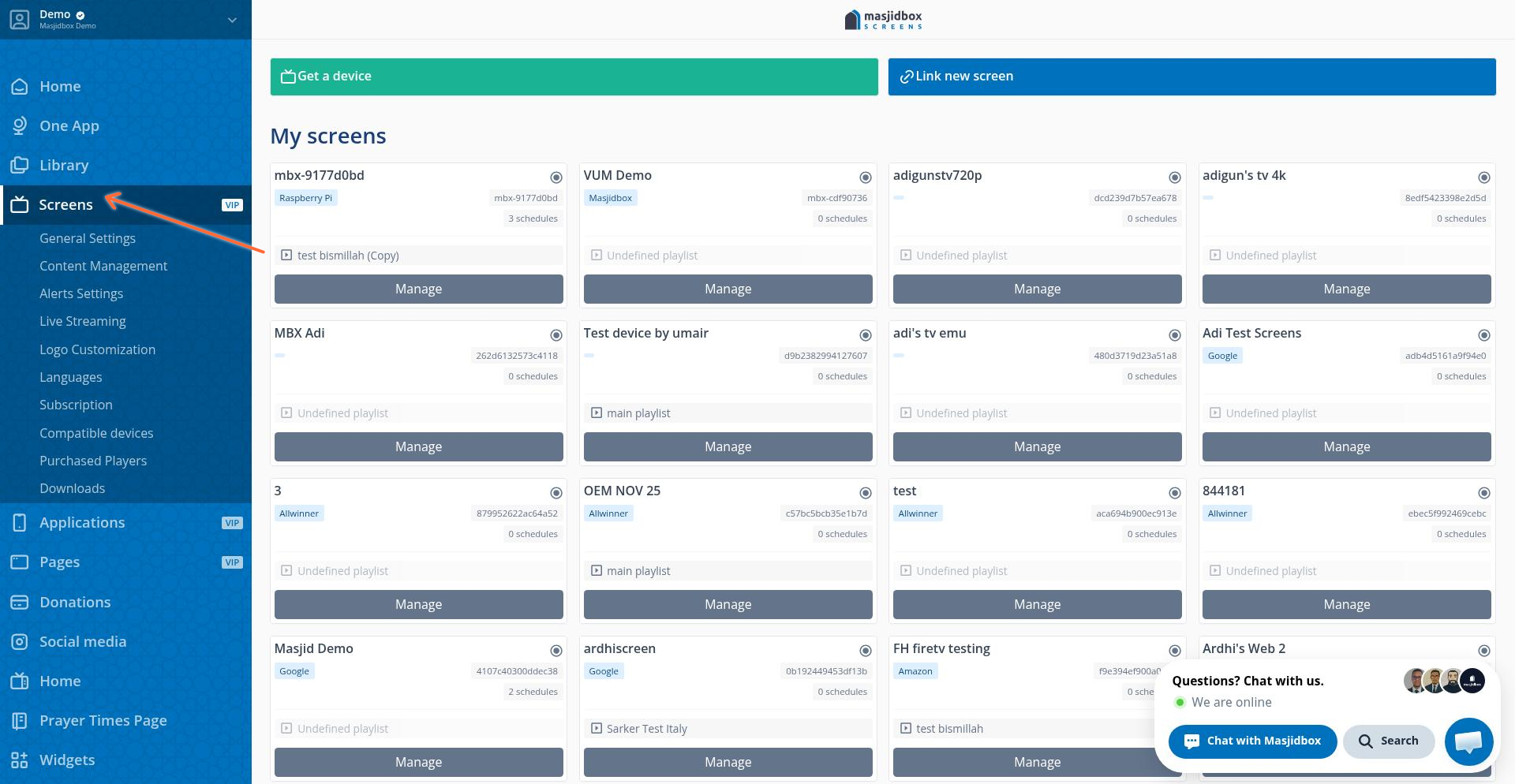
Click Link new screen.
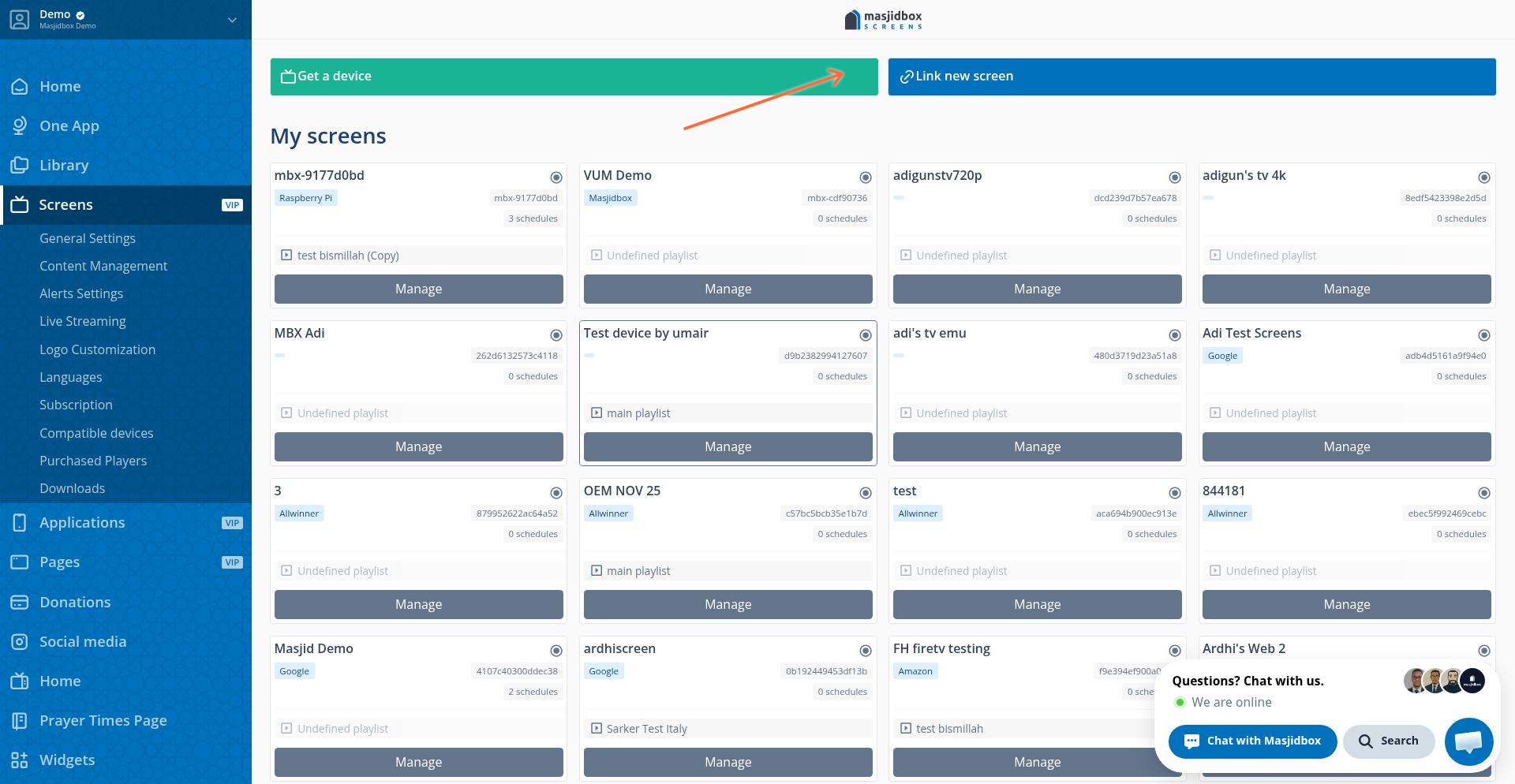
Enter the PIN displayed on your TV and complete the linking process. Your player will automatically start displaying your configured content.
Configure WiFi (Optional)
If you want to use WiFi instead of Ethernet, go to Screens > select your device > WiFi Setting.
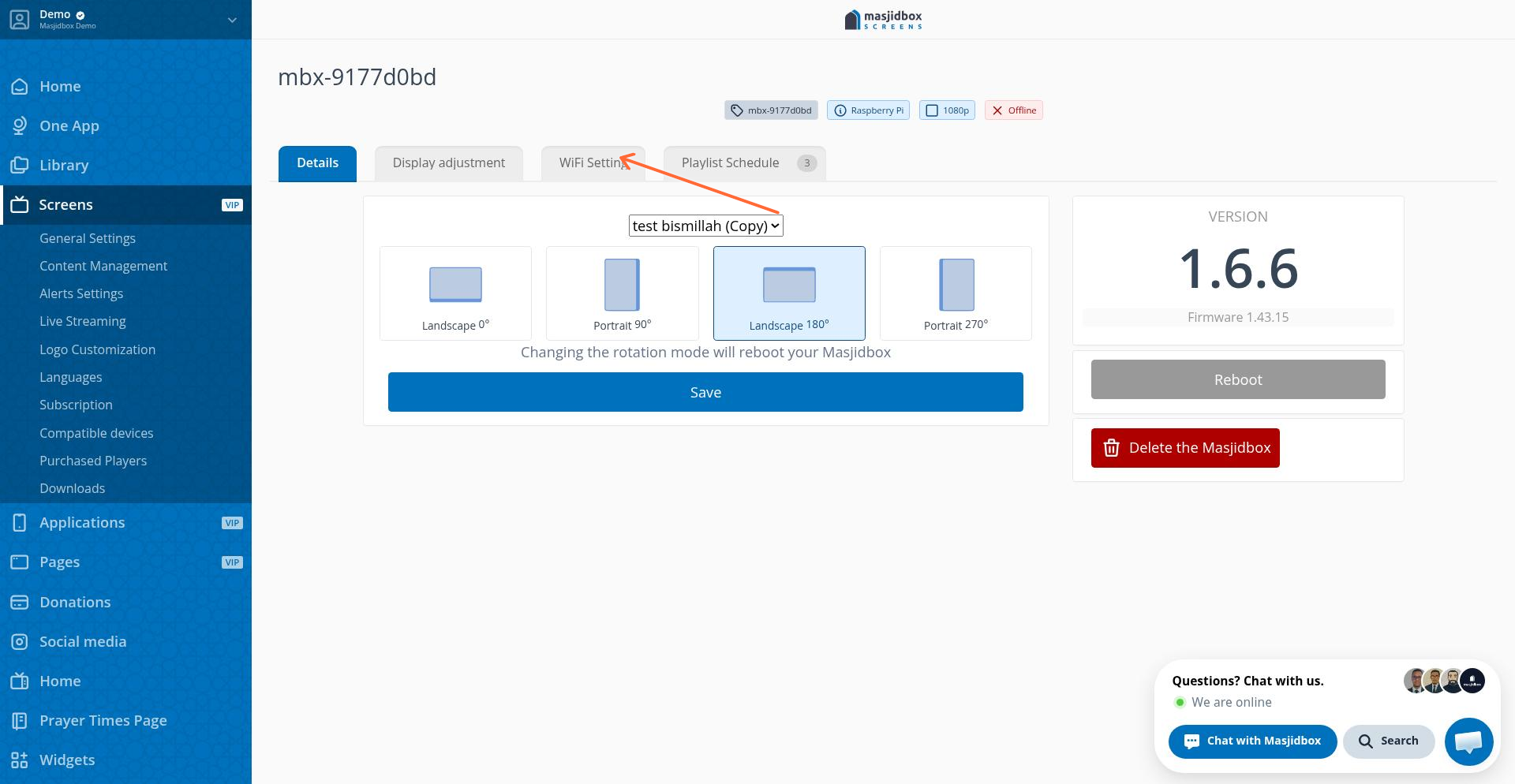
Add your network SSID and password, then wait about 5 minutes for the device to reboot and connect.
Keep Ethernet connected until WiFi is fully configured and verified. You can disconnect Ethernet once you confirm the player is connected via WiFi.
Next Steps
Once your player is linked, you can:
Configure prayer times and calculation methods
Add announcements and events to your playlist
Adjust display settings for portrait or landscape orientation
Set up multiple screens using an HDMI splitter (all screens will show the same content)
For alternative setup options, see What device to use for Masjidbox Screens.