
Add social media links to a Screens slide
Display your mosque's Facebook, Instagram, YouTube, Twitter, and WhatsApp links on your digital screens. The social media component shows all your platforms in one slide.
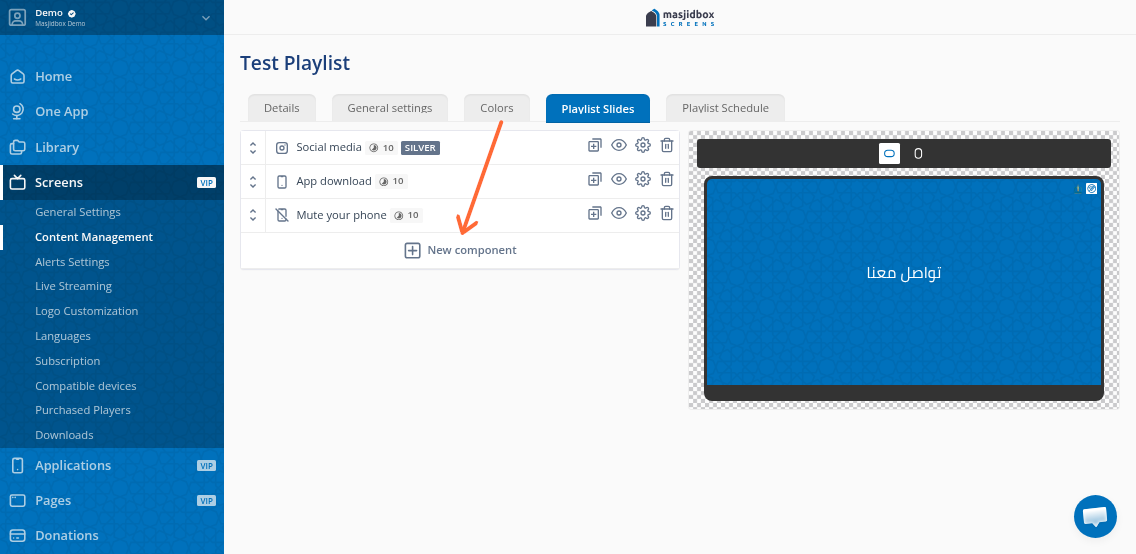
You'll need a Silver plan to add components to your playlist.
Add the social media component
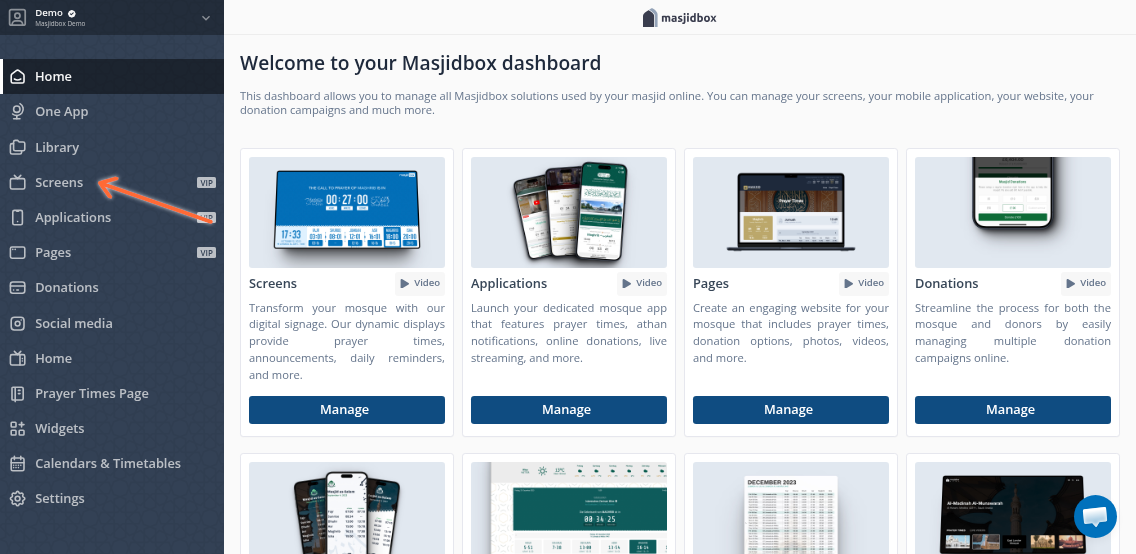
Go to Screens in your dashboard sidebar.
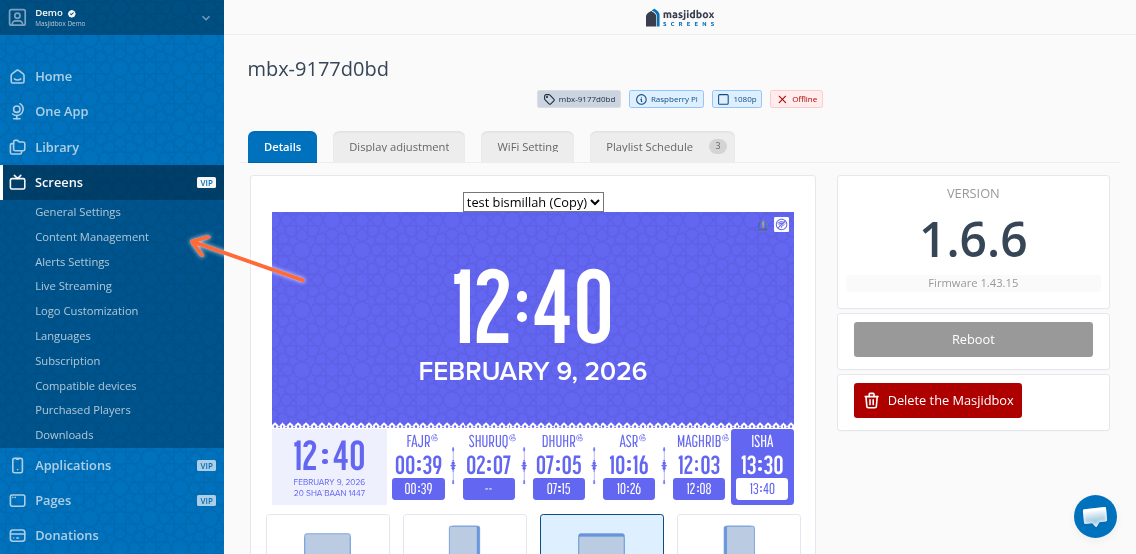
Click Content Management.
In your playlist editor, click New component.
Enter your social media links
Fill in the URL or handle for each platform you want to display:
Facebook – Your page URL or username
Instagram – Your profile handle
YouTube – Your channel URL
Twitter – Your handle
WhatsApp – Your contact number
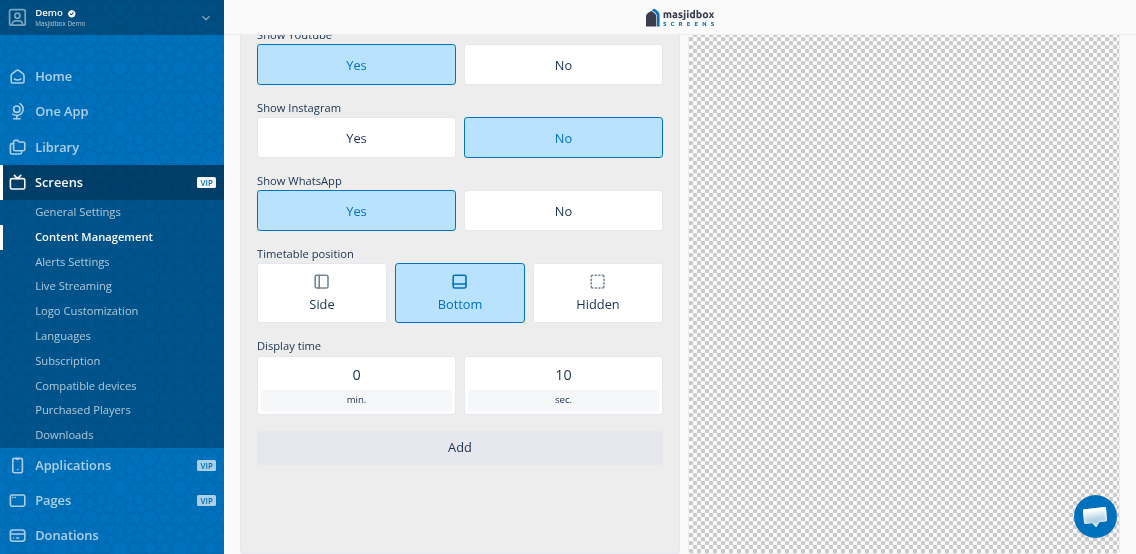
Leave any platform blank if you don't want to display it.
Customize display settings
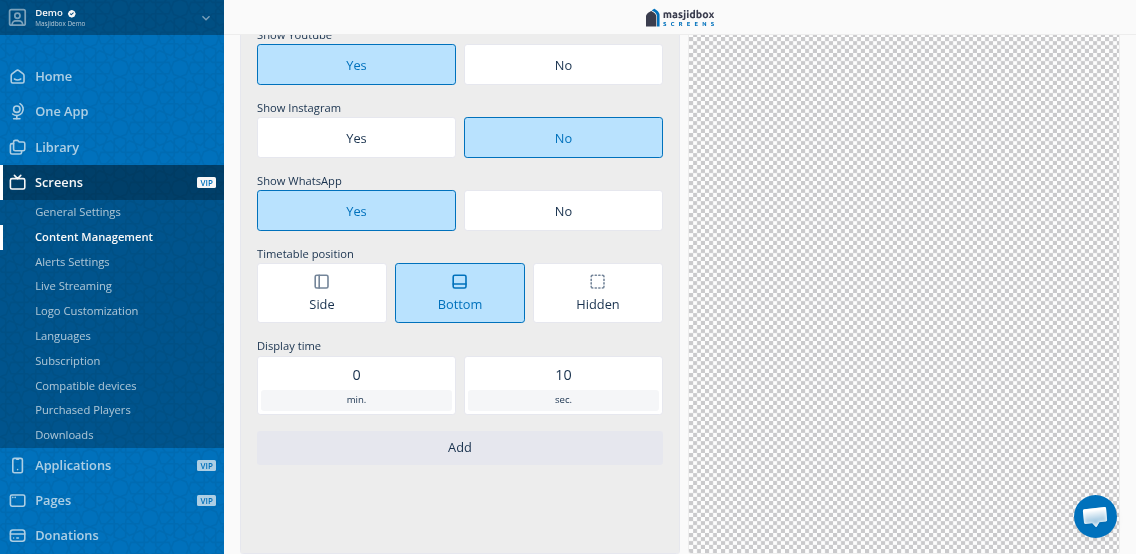
Set how long the slide appears and where it shows in your prayer times layout:
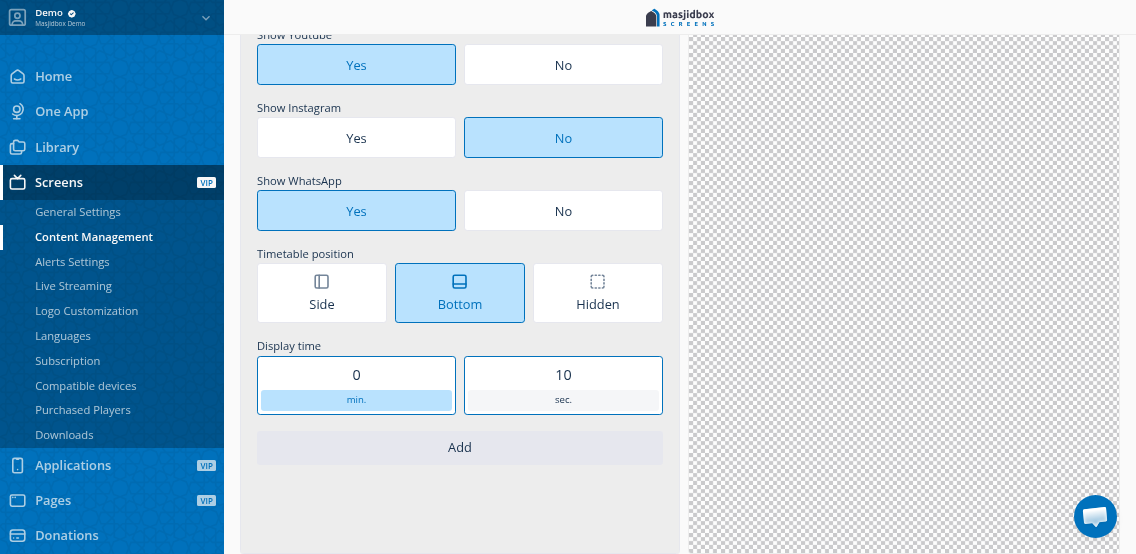
Display time – How many seconds the slide shows (default is 10)
Timetable position – Where the component appears if prayer times are visible
Aspect mode – How the content fits the screen
Click Save. The social media slide appears in your playlist.
Reorder slides by dragging them in the playlist. Your screen updates automatically.