
How to upload and manage documents
Upload and share documents like PDFs, Word files, spreadsheets, and presentations with your community. Use your Media Library to manage all uploaded documents in one place.
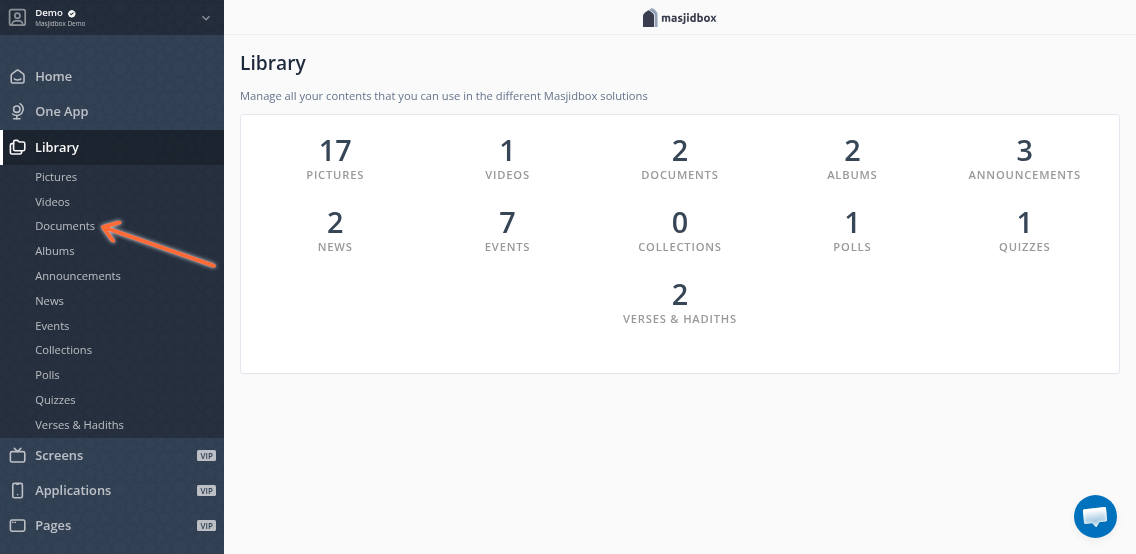
Access the Documents library
Go to Library> Documents in your dashboard sidebar.
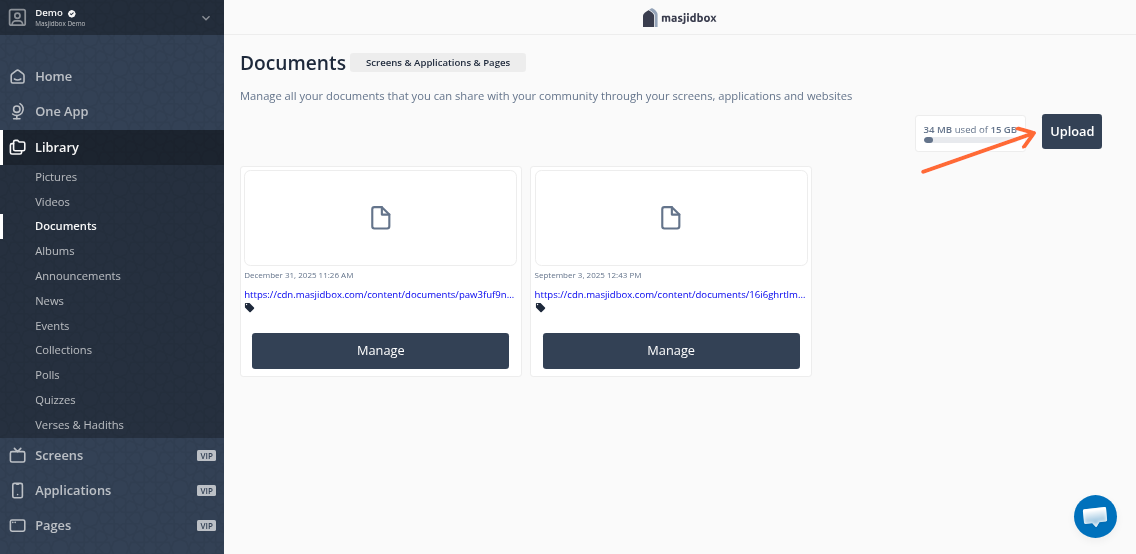
Upload a document
Click Upload in the top-right corner.
Drag and drop your files or click to choose from your computer. Supported formats:
PDF
Word (DOCX)
Excel (XLSX)
PowerPoint (PPTX)
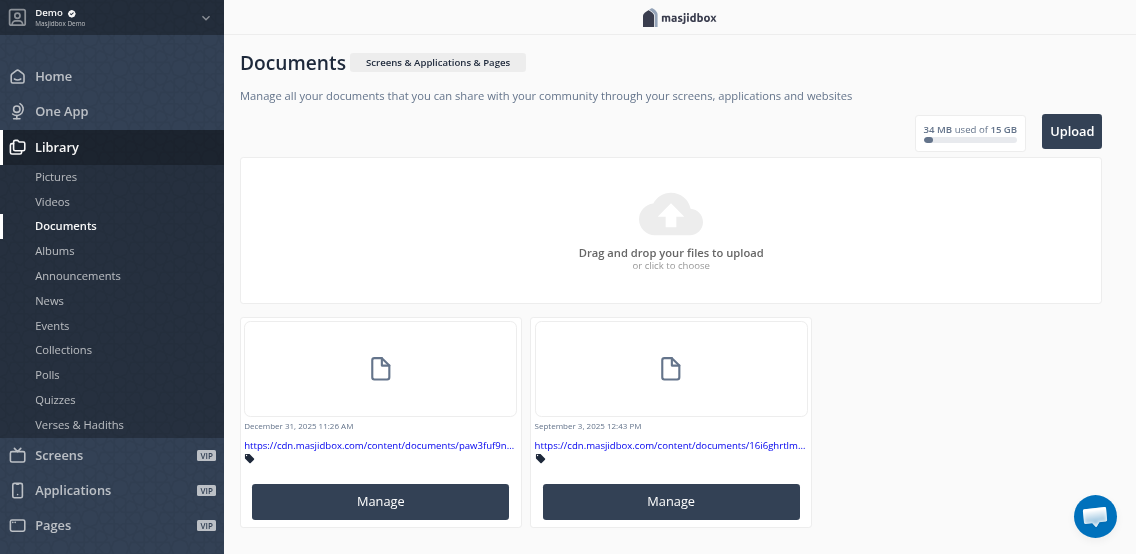
The maximum file size is 10 MB per document. Storage limits vary by plan.
Your document appears in the library after the upload completes.
Get the shareable link
Click the shareable URL displayed under each document thumbnail. This opens the document in a new browser tab where anyone with the link can view or download it.
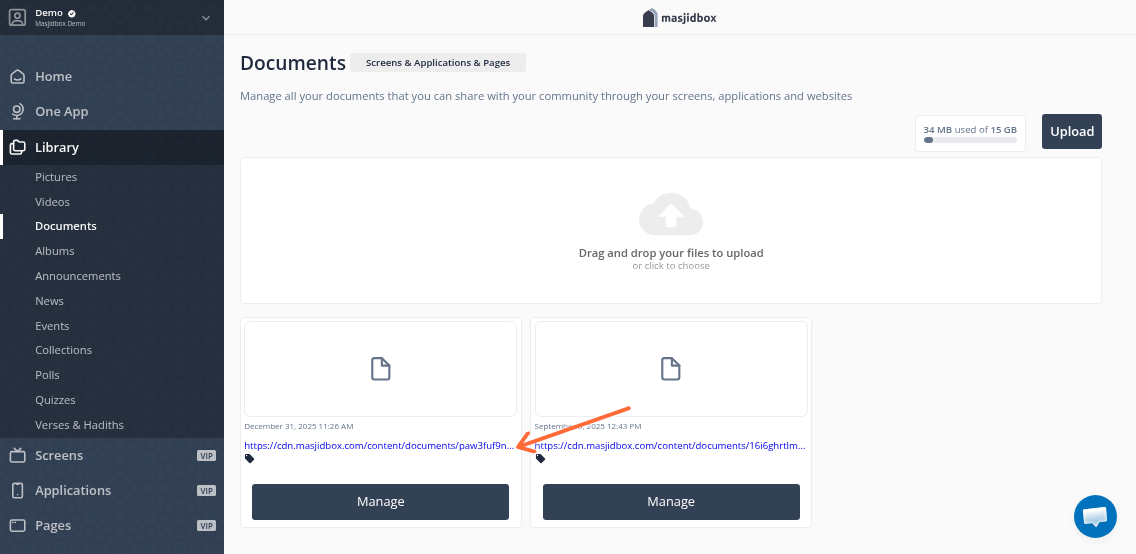
Copy the URL from your browser to share with your community via announcements, events, or social media.
Edit or delete documents
Hover over a document and click Manage.
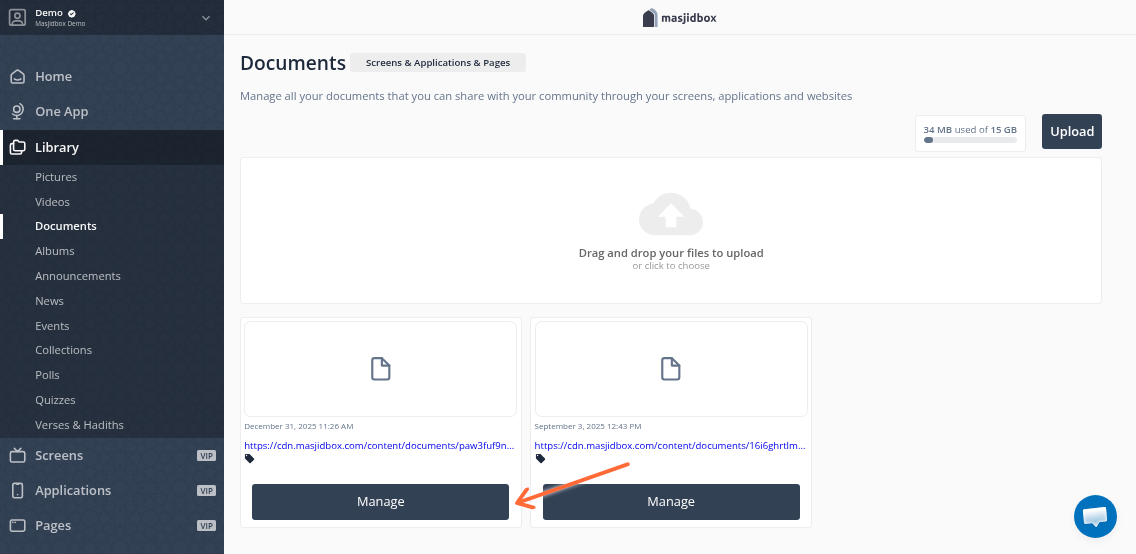
From the menu, you can:
Edit information — Update the document title or add tags
Delete — Permanently remove the document
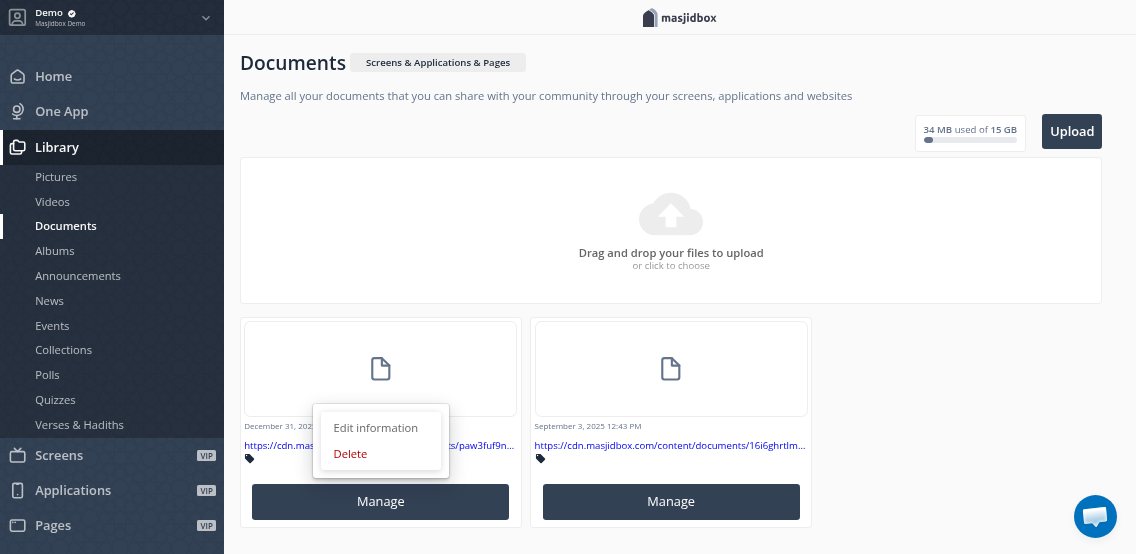
To replace a document, upload the new version and delete the old one.
Use documents across products
Uploaded documents are available in Masjidbox Screens, Applications, and Pages. Add them to playlists, announcements, news articles, and events using the media picker.