How to add Popup
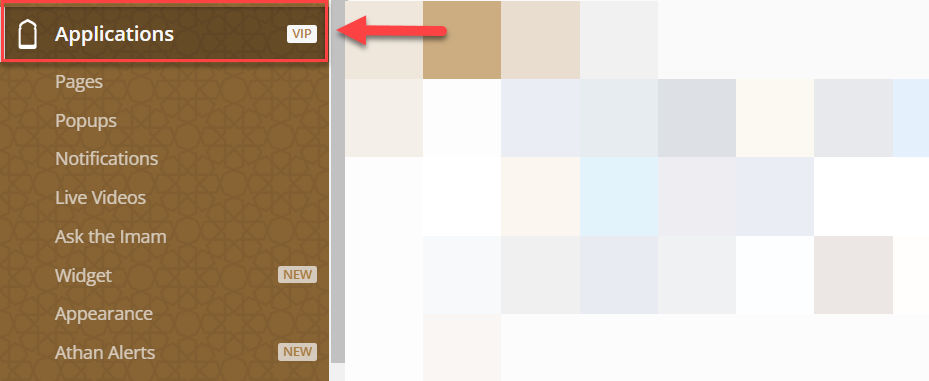
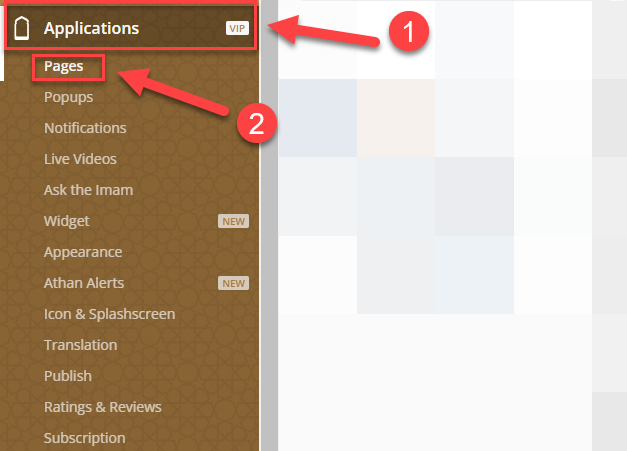
Go to the dashboard, then Applications
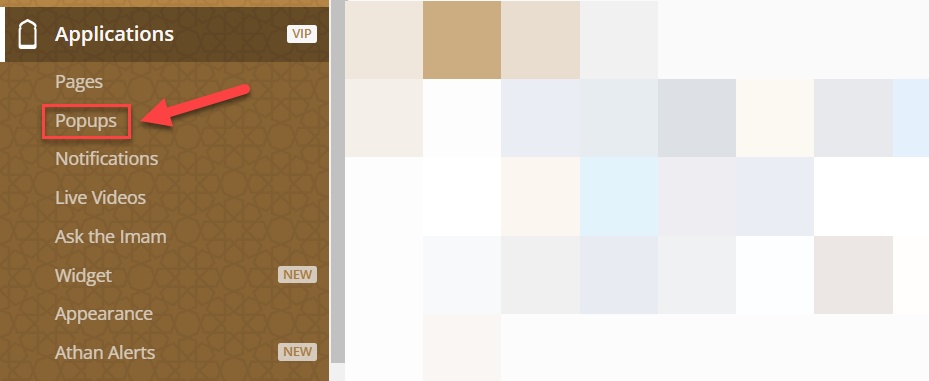
Click on Popups
Click on Create

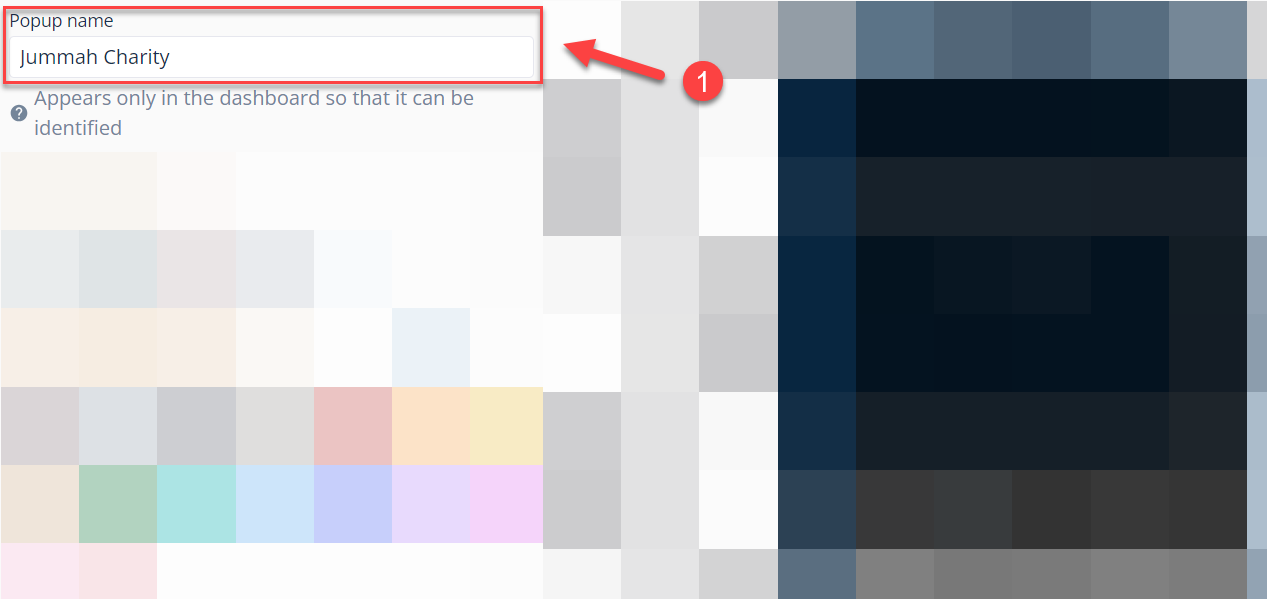
Enter the Popup name⁽¹⁾
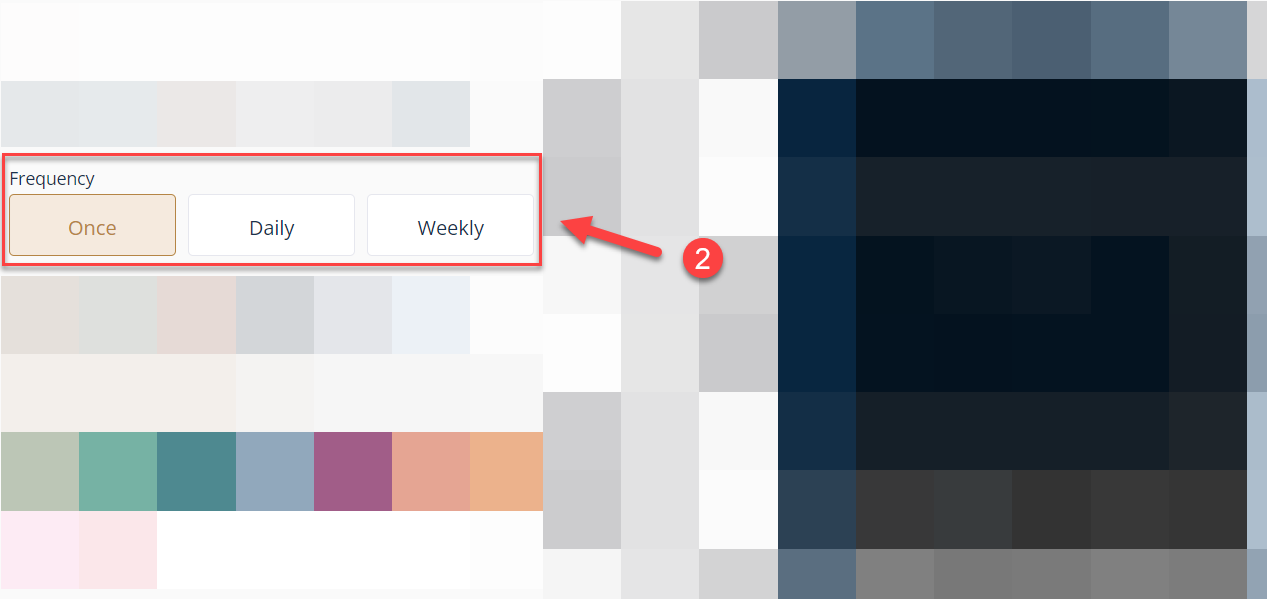
Choose the Frequency of the Popup⁽²⁾
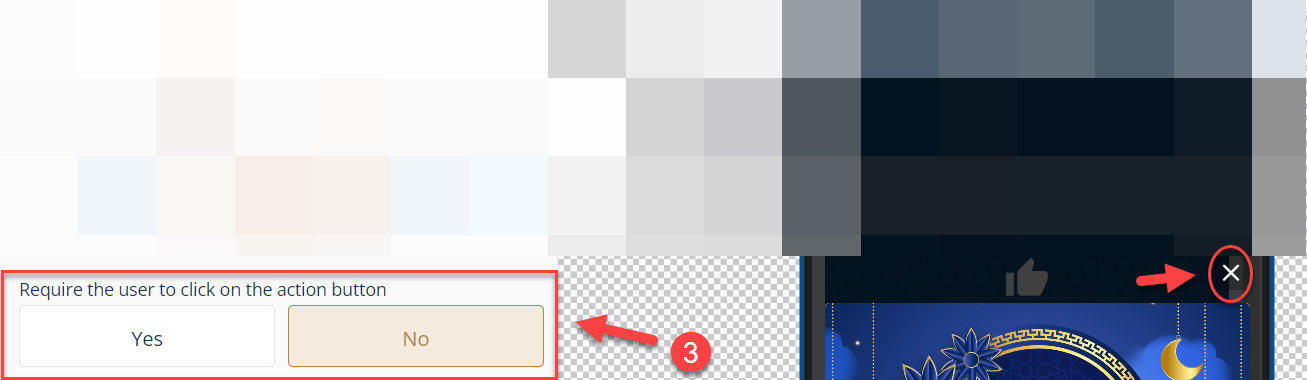
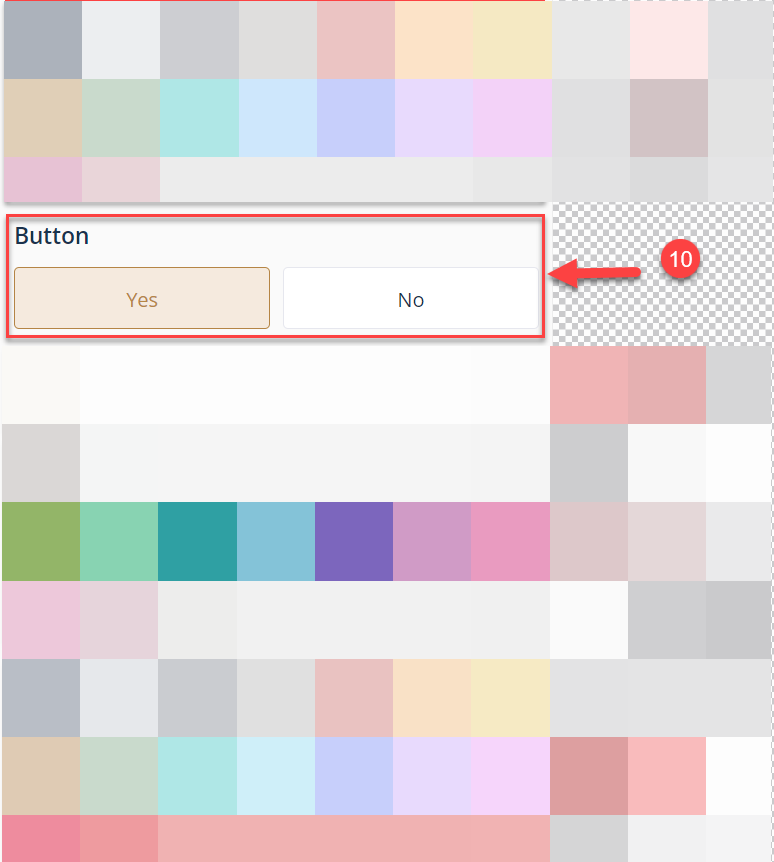
You can choose (Yes) if you want to require the user to do an action and (No) if you don't, and an X symbol will be visible at the top of the popup⁽³⁾
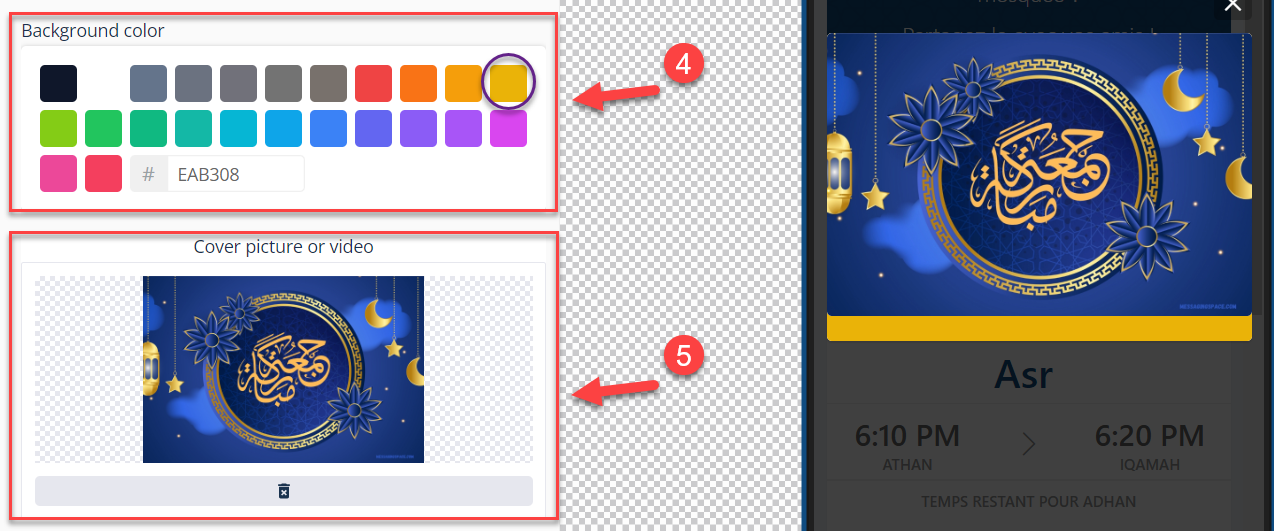
Select the color of the background⁽⁴⁾ & the cover picture or a video⁽⁵⁾ you want.
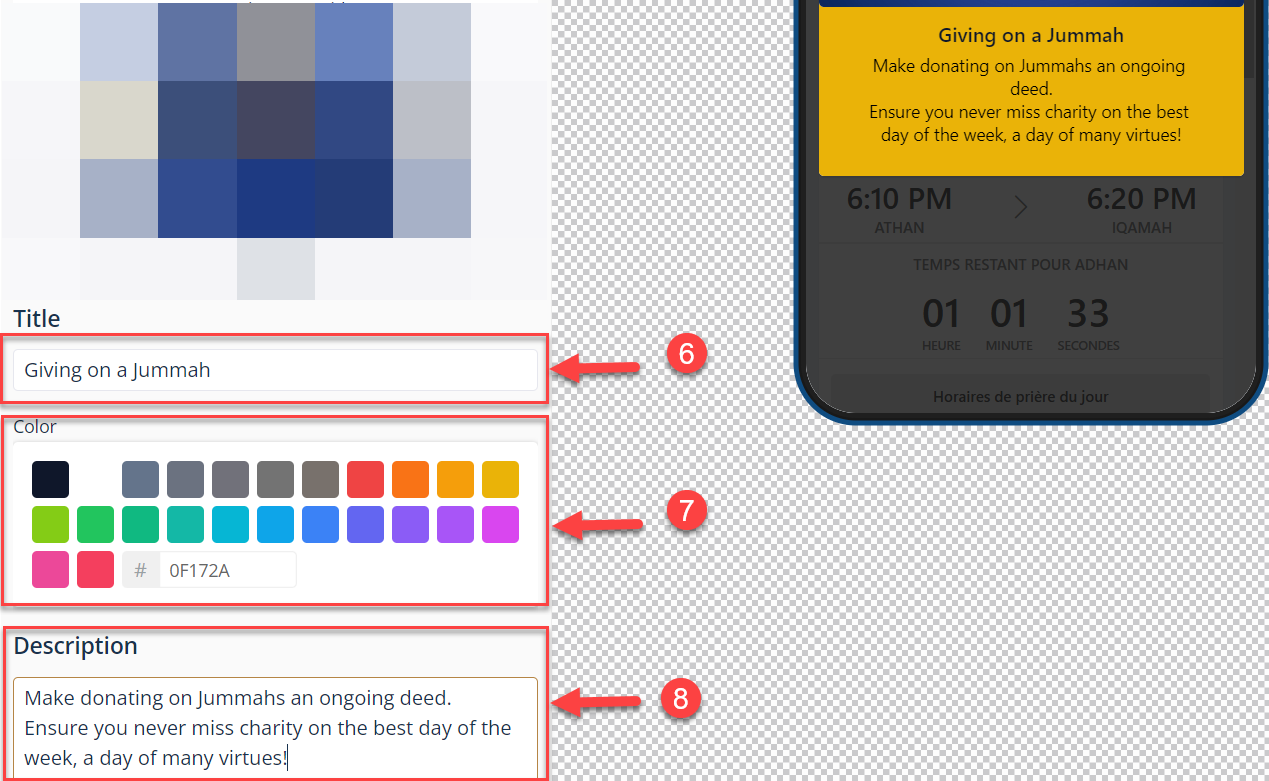
Enter the text of the Popup⁽⁶⁾, the color of the text⁽⁷⁾, and the description⁽⁸⁾
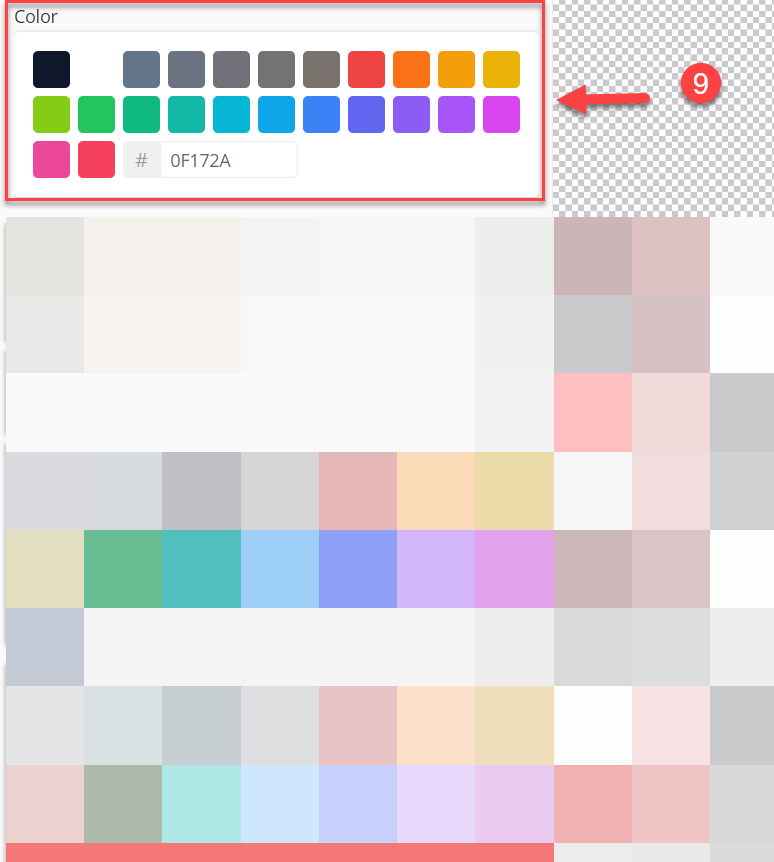
Select the color of the description's text⁽⁹⁾
You can choose (Yes) if you want to add a button and (No) if you don't⁽¹⁰⁾
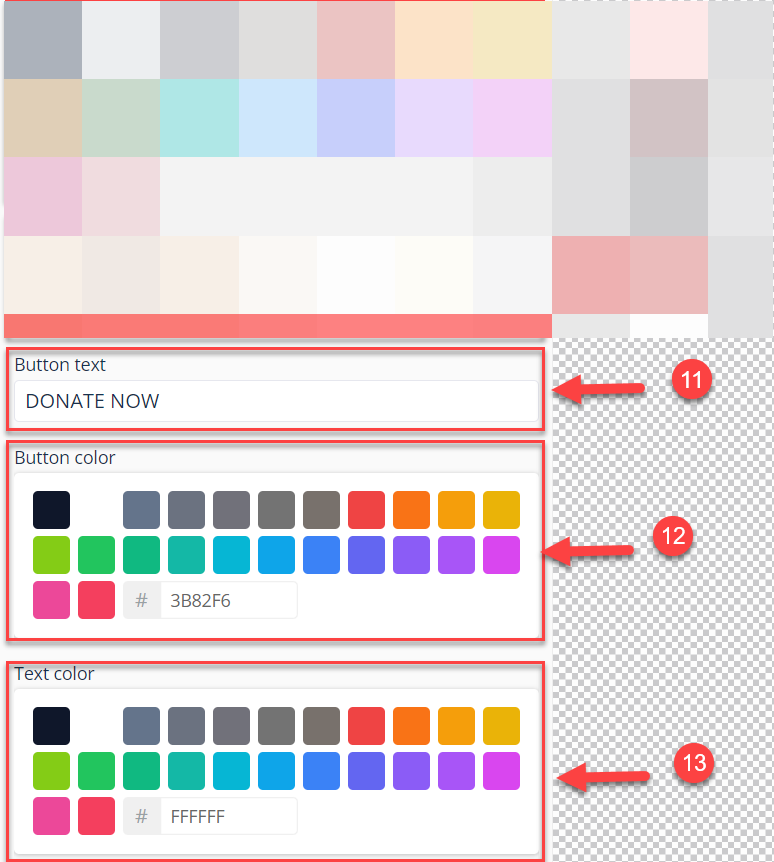
Enter the Button text⁽¹¹⁾, the Button color⁽¹²⁾, and the Color of the button's text⁽¹³⁾
Choose App Page to add a page that you previously created⁽¹⁴⁾, or choose a Webpage and add a link⁽¹⁵⁾
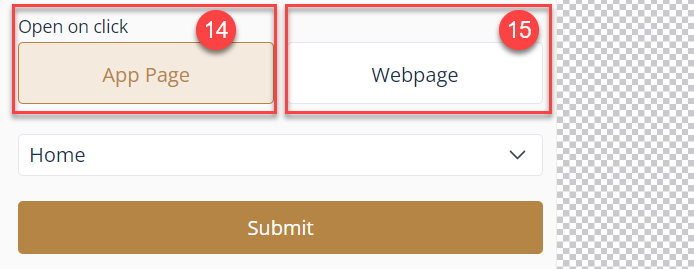
Last step, check the final result before you click on submit.

To add the Popup to the Applications page, you must go to the Applications⁽¹⁾, then Pages⁽²⁾.
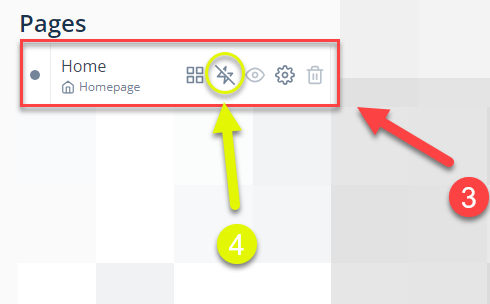
On the Homepage⁽³⁾, click on the lightning icon⁽⁴⁾, which shows whether the Popup is activated or not.
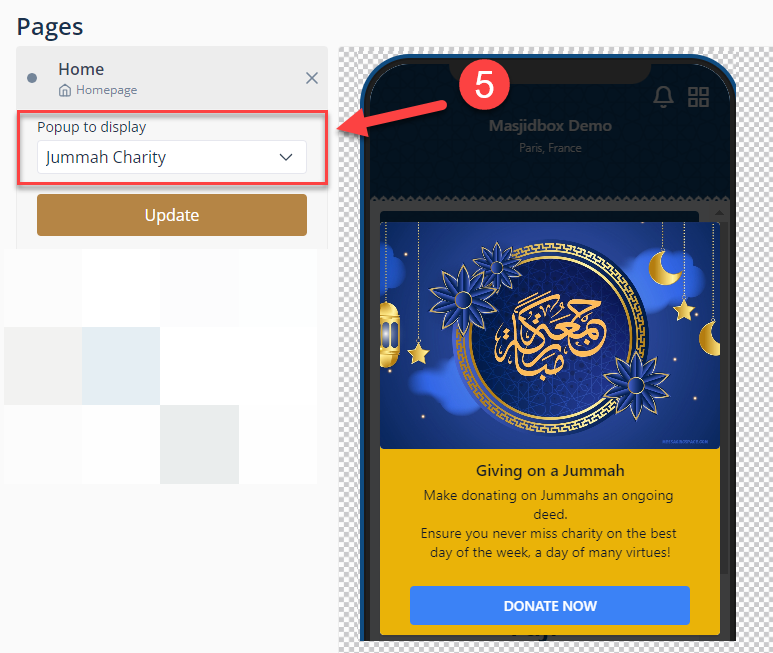
Choose the Popup you already created⁽⁵⁾ and click on update.