
How to change the colors and theme of your screen
You can customize the visual appearance of your Masjidbox Screen by changing its colors. The available options depend on your subscription plan.
Masjidbox Screens uses a single base theme. You customize the look by changing colors, not by switching between multiple themes.
Access color settings
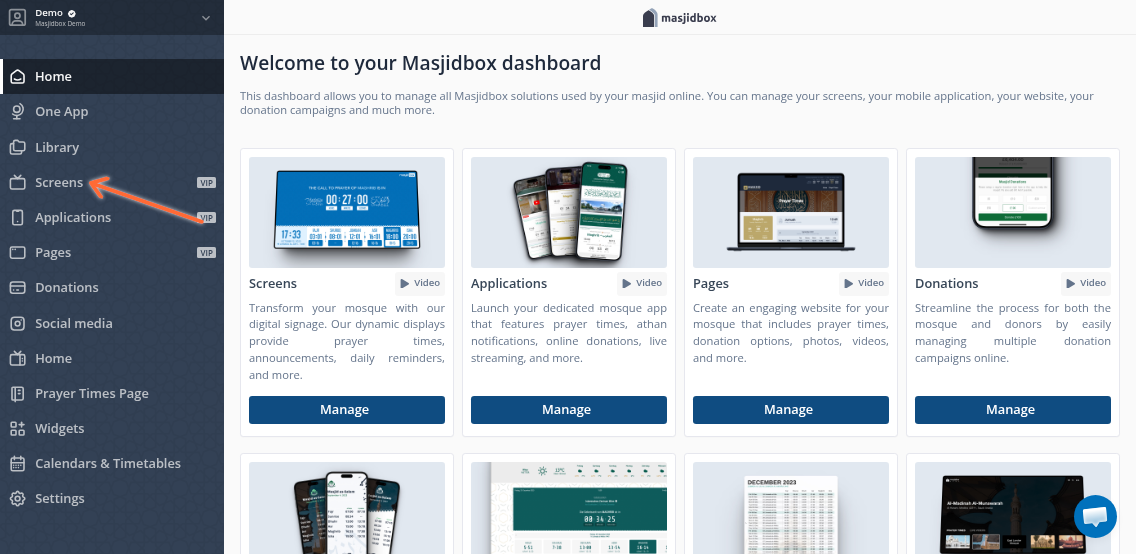
Navigate to Screens from your dashboard.
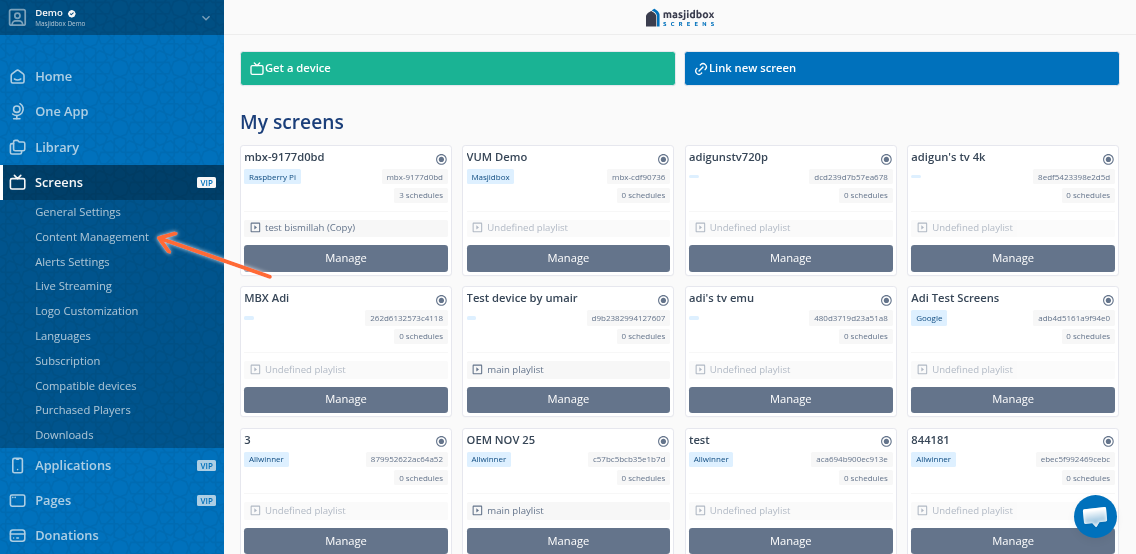
Click Content Management.
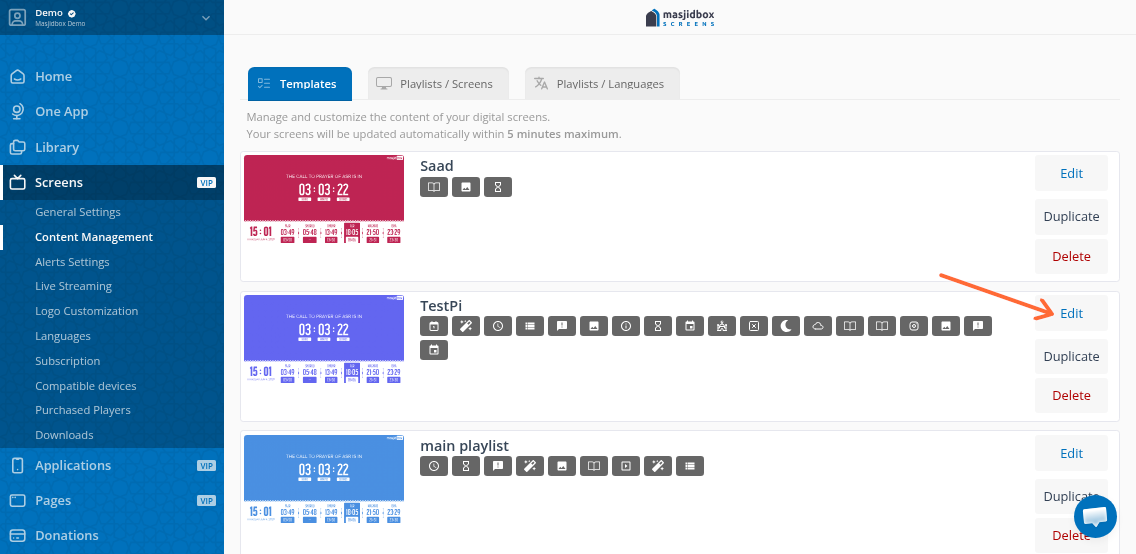
Find the playlist you want to customize and click Edit.
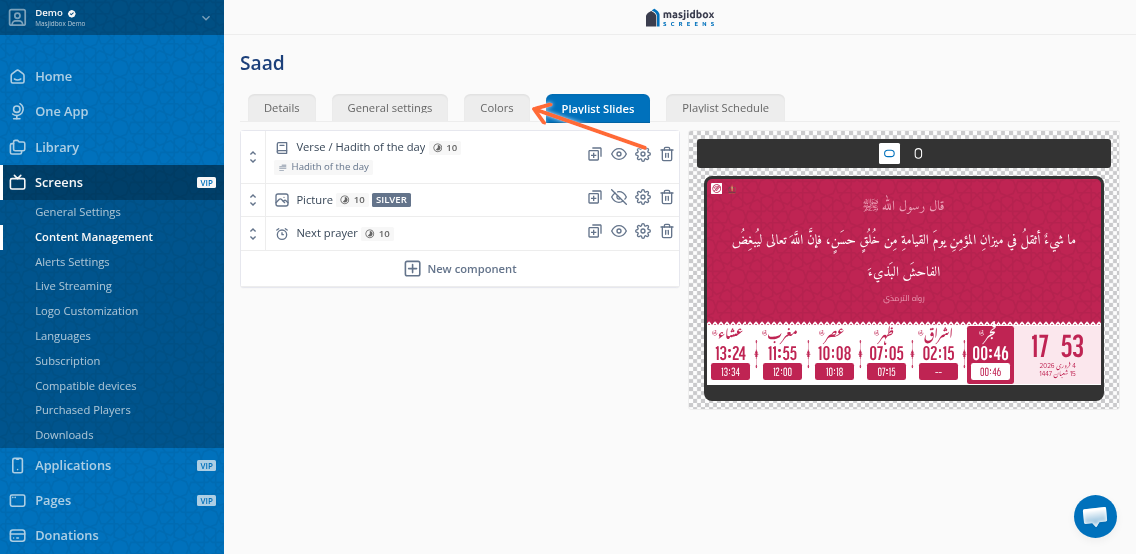
Scroll down to the Colors section.
Choose your colors
What you can customize depends on your plan:
Free plan
Select from preset colors displayed in the color palette.
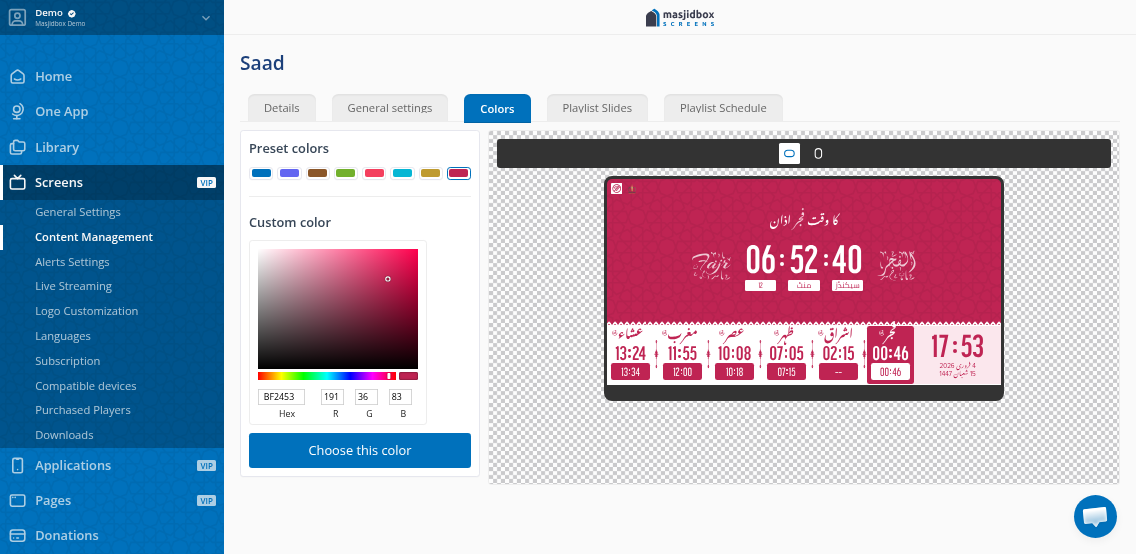
Silver or Global plan
Use the custom color picker to choose any color. Click Choose this color to apply your selection.
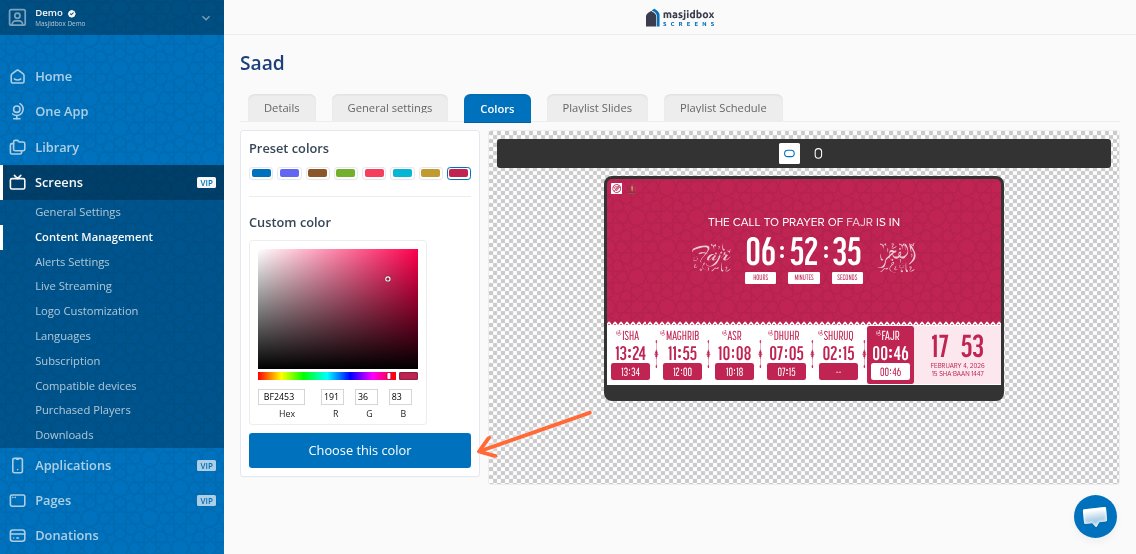
The custom color picker lets you match your mosque's branding exactly using any RGB color.
Save your changes
After selecting your color, save the playlist. Your screen will update with the new color scheme.
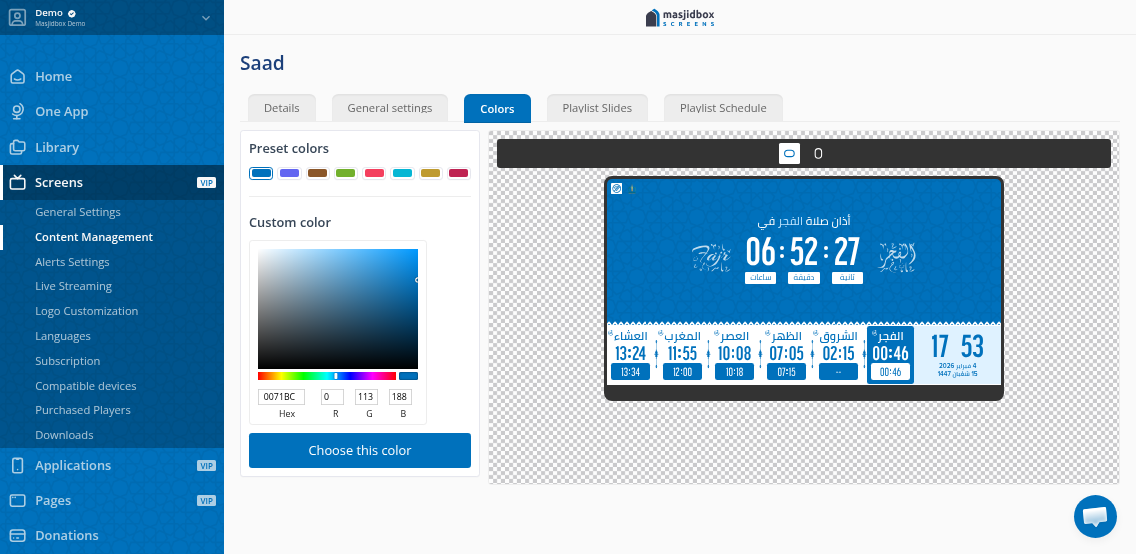
Color changes affect the background and accent elements of your screen display. If changes don't appear immediately, wait a few moments for the screen to refresh.