
How to Schedule a Playlist
Scheduling lets you display specific playlists at certain times—useful for Jumuah announcements, Ramadan content, or prayer-related displays. Scheduled playlists temporarily override your default playlist and revert automatically when the schedule ends.
Before you begin: Create the playlist you want to schedule. See How to add content to your playlist if you need help.
Access Playlist Scheduling
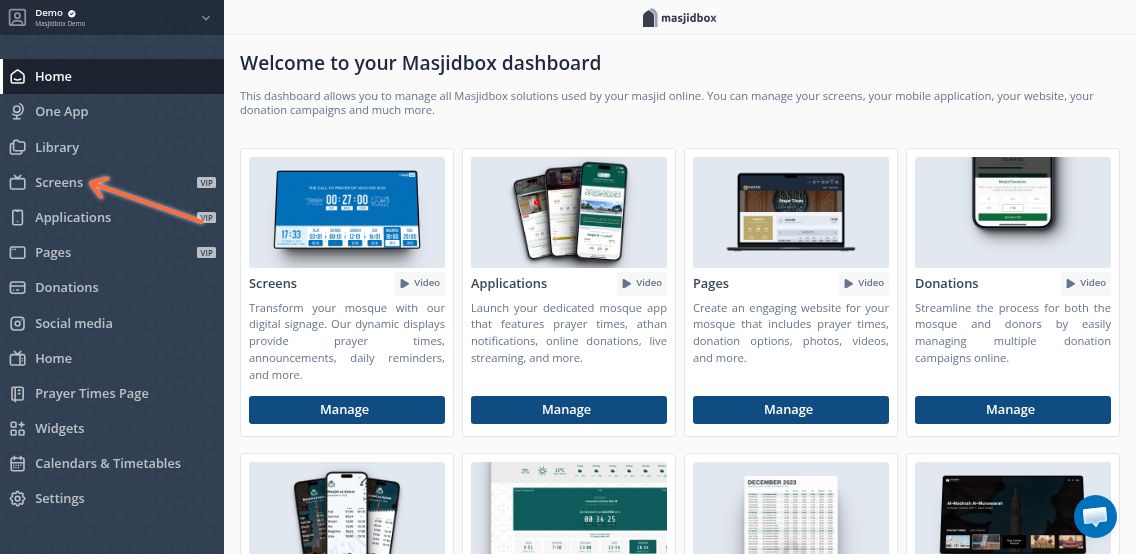
From your dashboard, navigate to Screens.
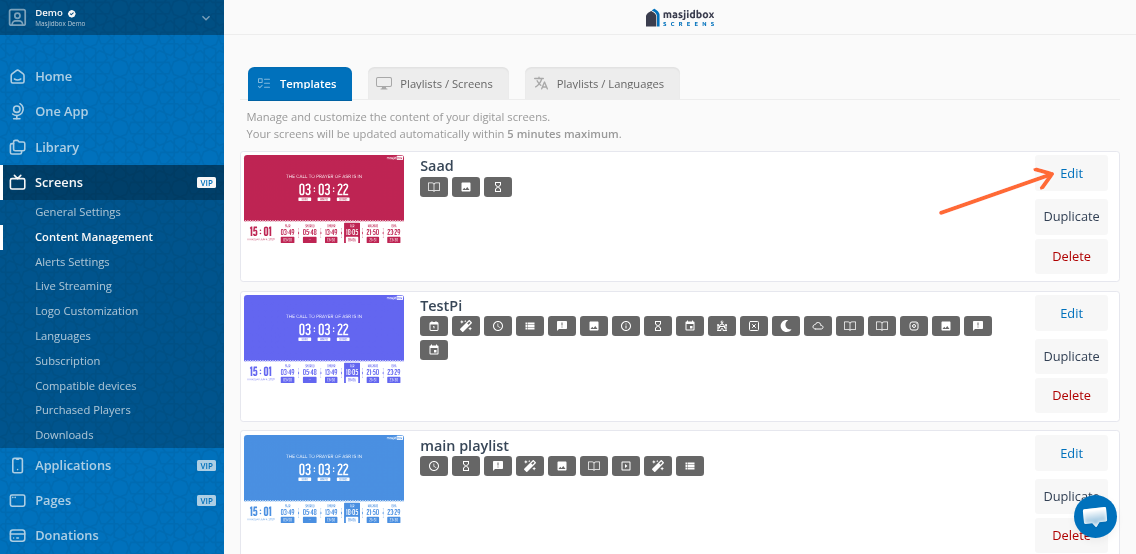
Go to Content Management and click the Edit button for the playlist you want to schedule.
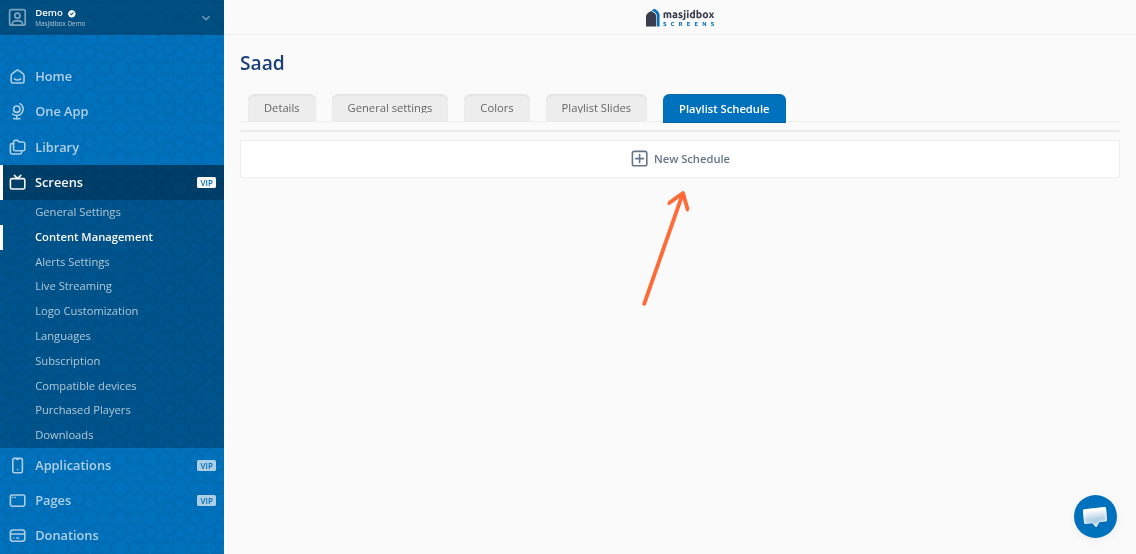
Configure the Schedule
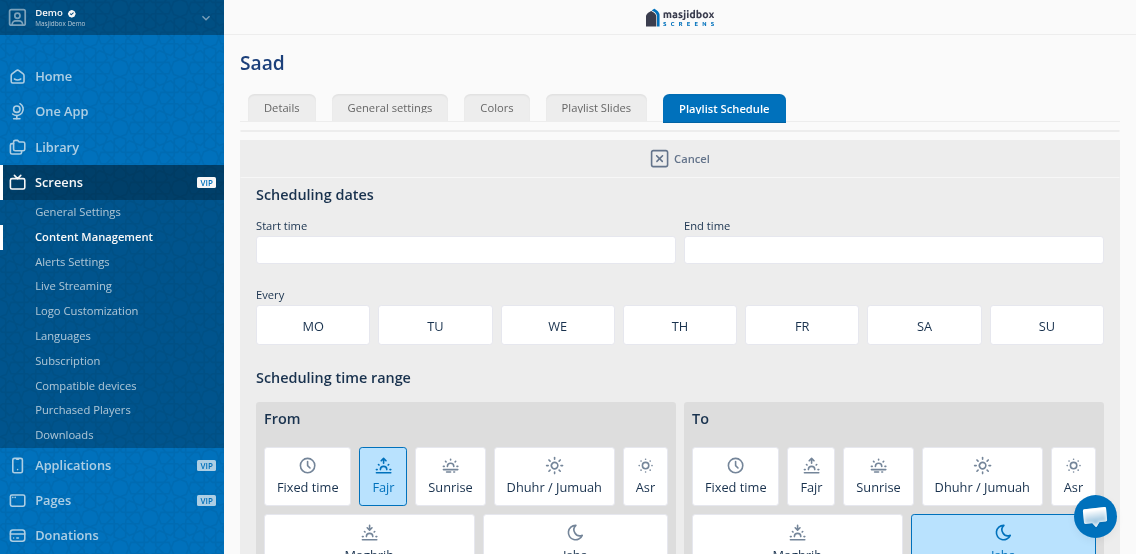
Scroll to the Playlist schedule section.
Set your scheduling options:
Time-based: Fixed times (e.g., 2:00 PM - 3:00 PM) or time ranges
Date ranges: Specific dates (e.g., 14th-15th of the month)
Recurring: Repeat on specific days (e.g., every Friday for Jumuah)
Prayer-relative: Offsets from prayer times (e.g., 10 minutes before Athan, stops after Iqamah)
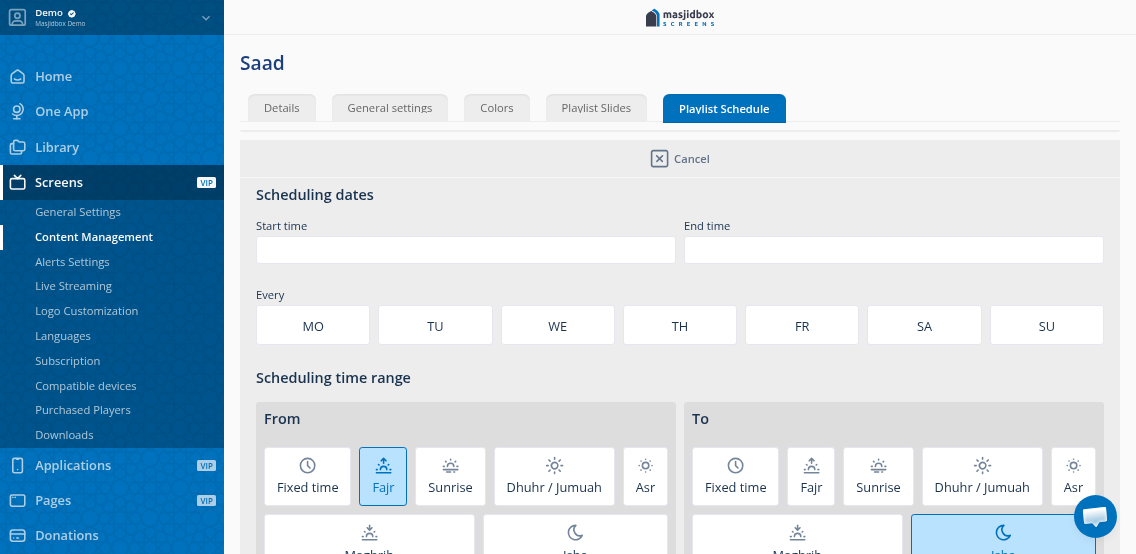
You must set both start and end times. Schedules cannot run indefinitely without an end time.
Assign to Screens
Scroll to the playlists/screens assignment table. Check the box next to each screen that should display this scheduled playlist. A green checkmark means the screen will use this playlist.
Click Save. Your screens may need to be rebooted for the schedule to take effect.
Common Use Cases
Jumuah khutba translations: Schedule a playlist to display during Friday prayer
Ramadan content: Show special duas or announcements during Taraweeh times
Pre-prayer countdowns: Display alerts 10 minutes before Athan
Event announcements: Temporary content for specific dates
Changes may take a few minutes to propagate. If your scheduled playlist doesn't appear, verify the dates are current, and the screen assignment checkmarks are green.