
Step 3: Create your Android Service Account
Go to this page
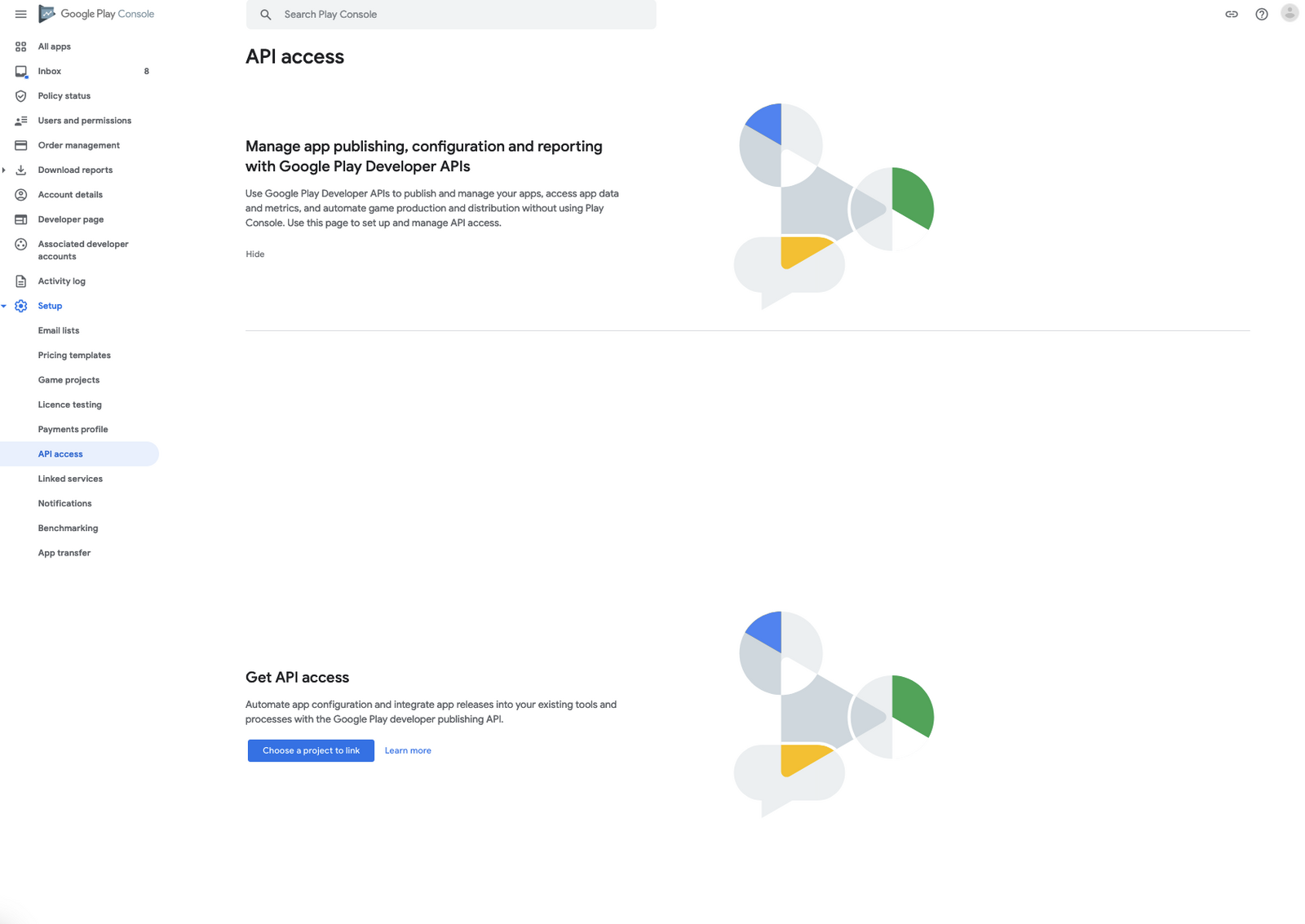
Click on Setup on the left-hand menu
Click on API access
Click on Choose a project to link button
Click on I agree
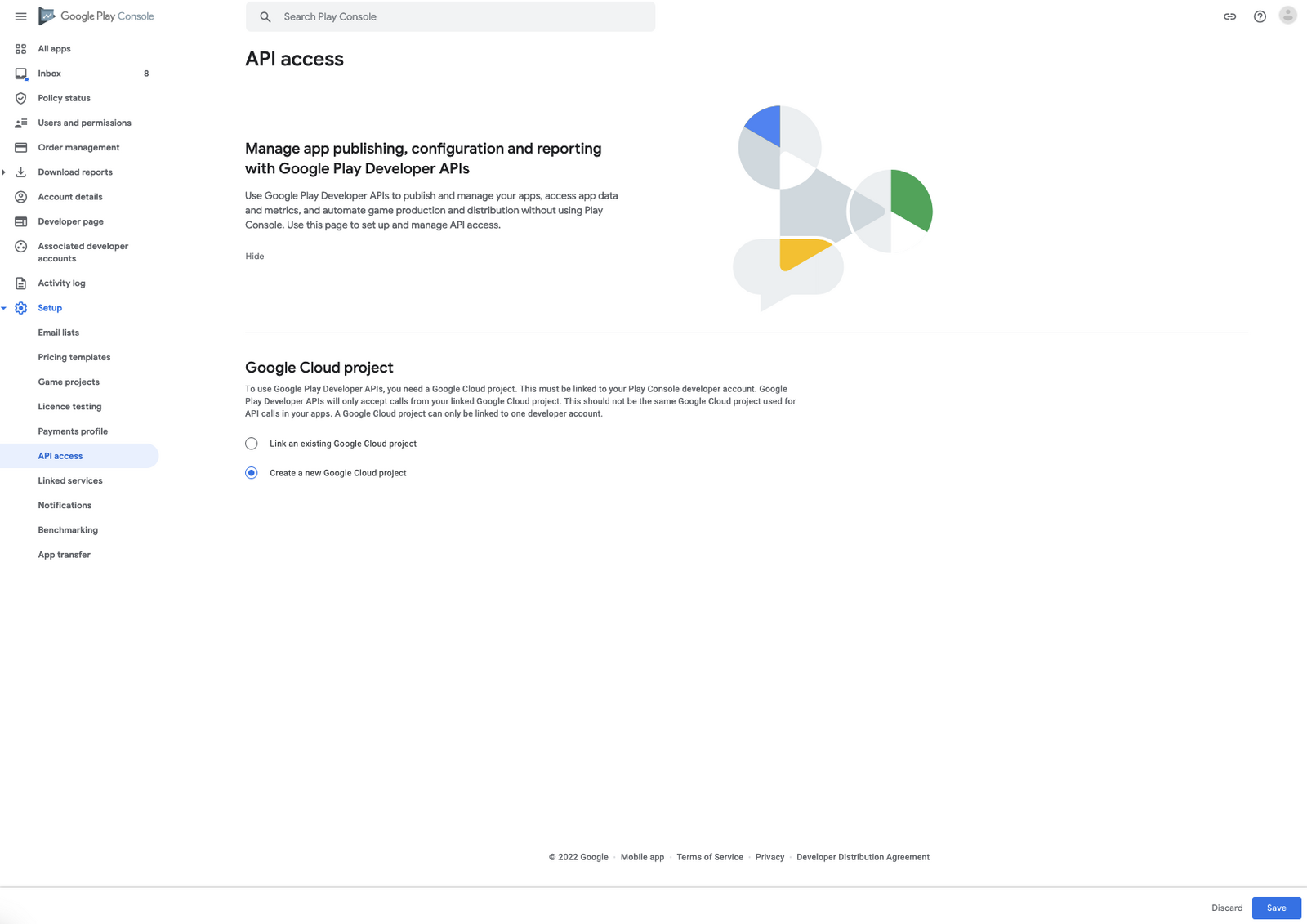
Choose Create a new Google Cloud Project and click on Save
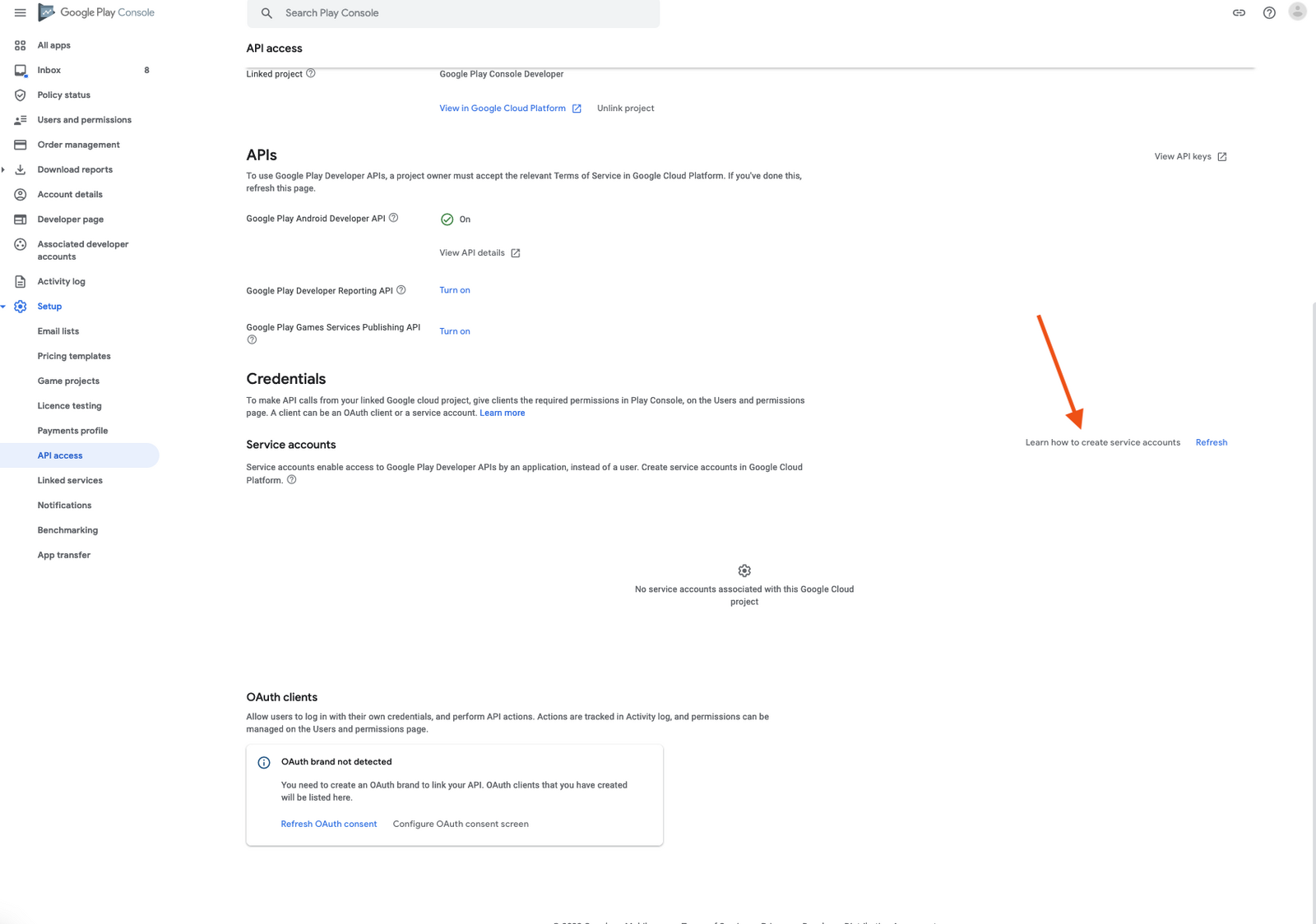
Click on Learn how to create service accounts button
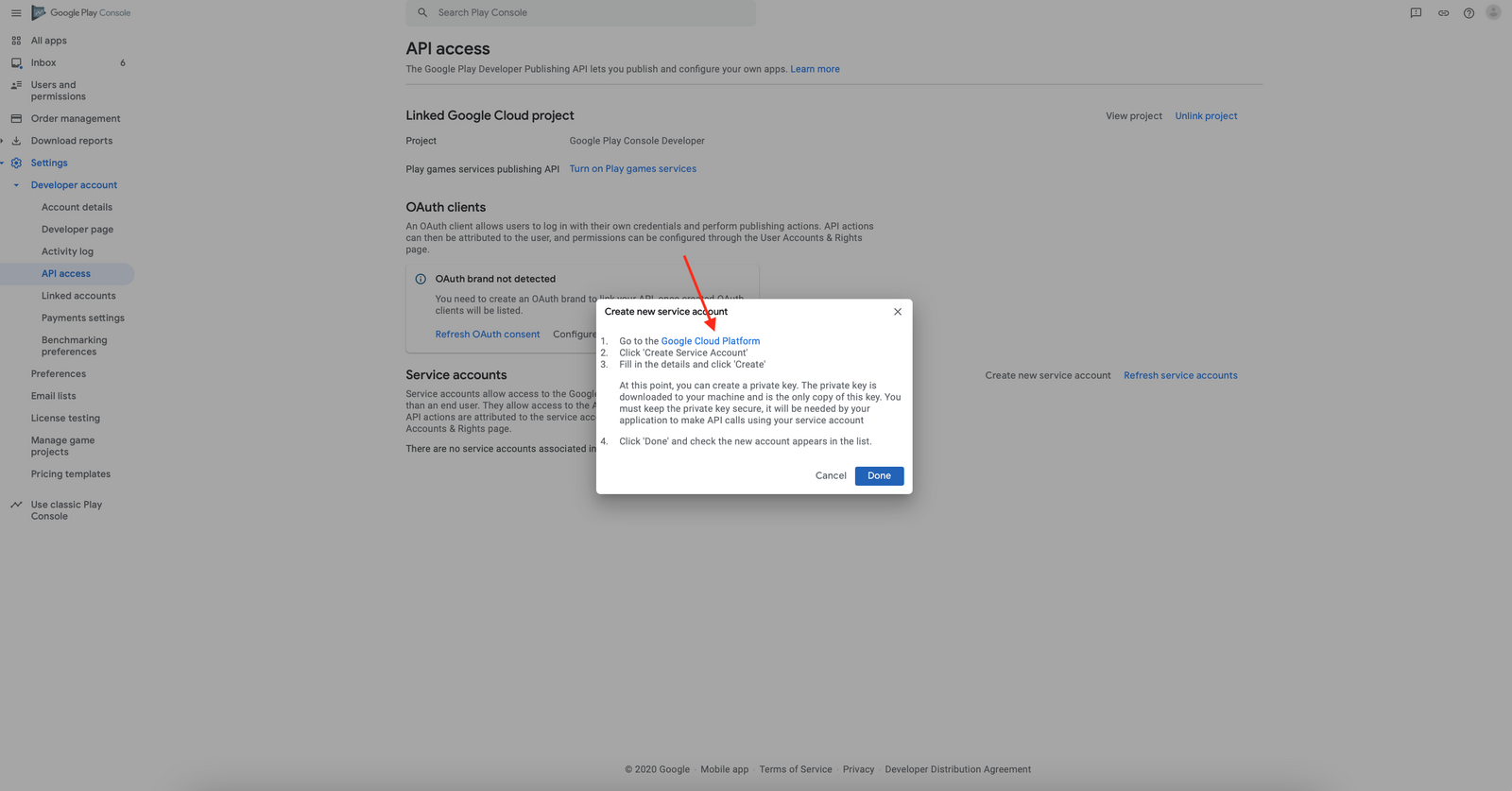
Click on Google Cloud Platform of this window (Do not click Done)
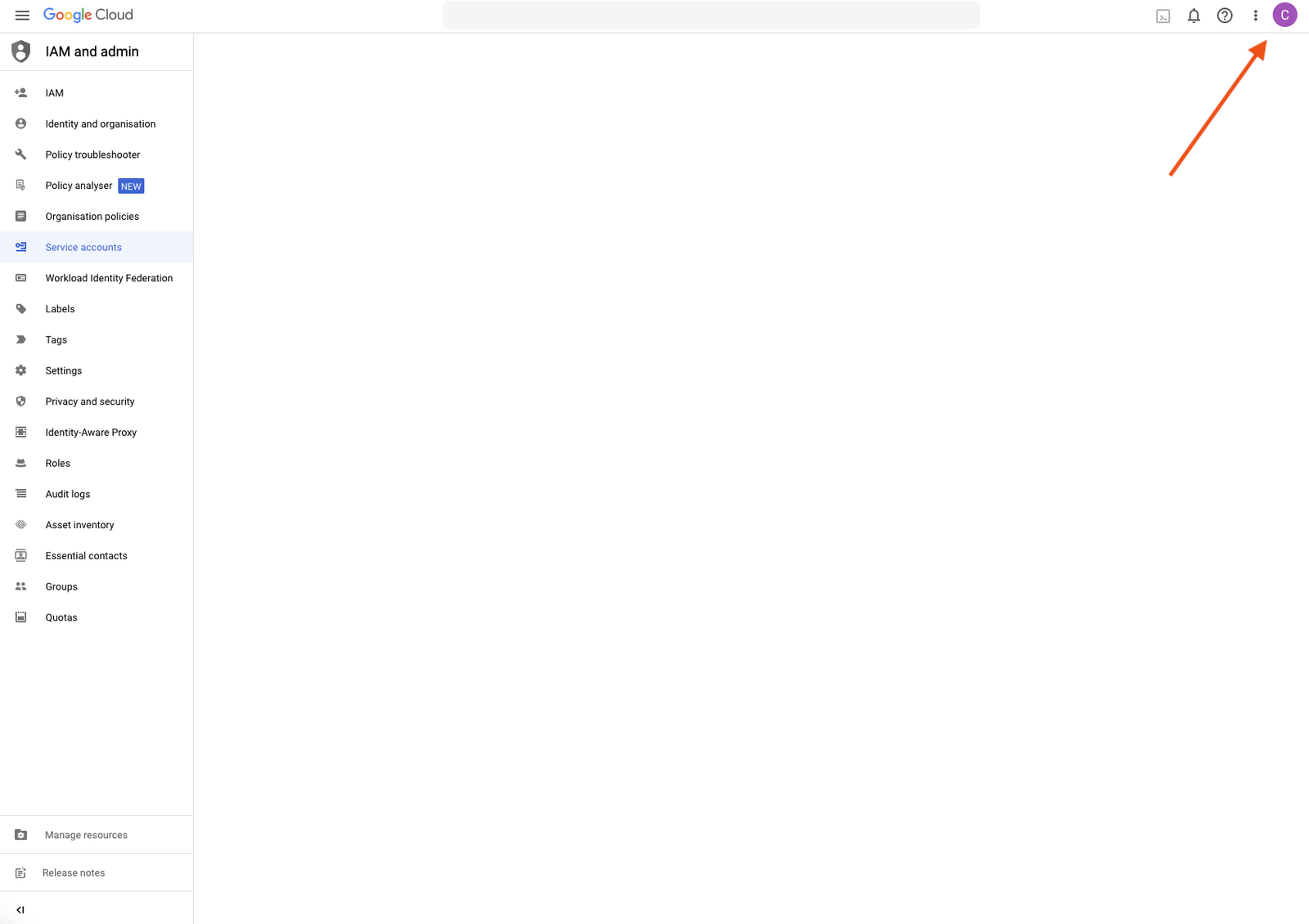
Be sure that you are on the right account
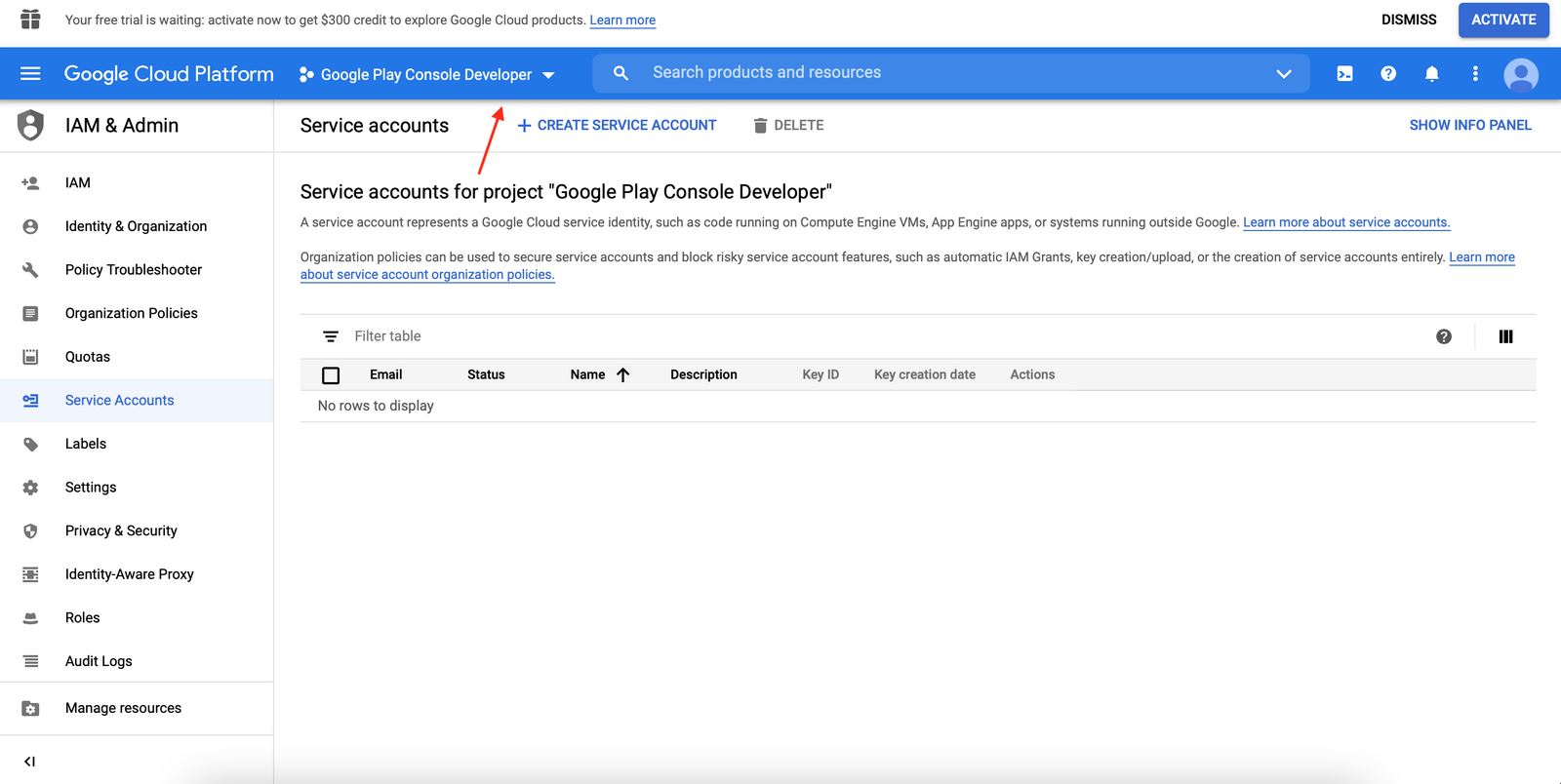
Click on Google Play Android Developer from the next window to select it
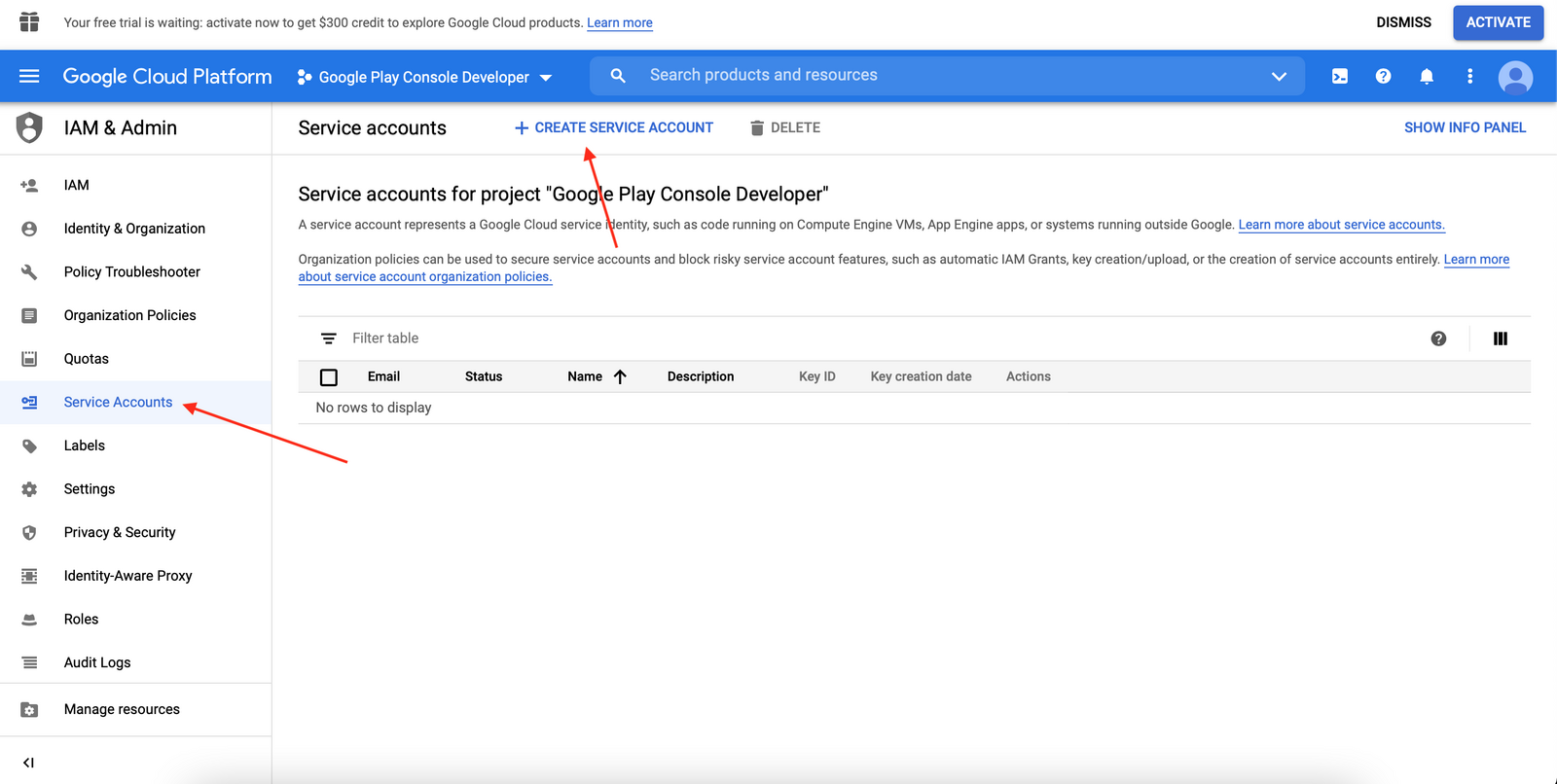
Click on Service Accounts and then Create Service Account
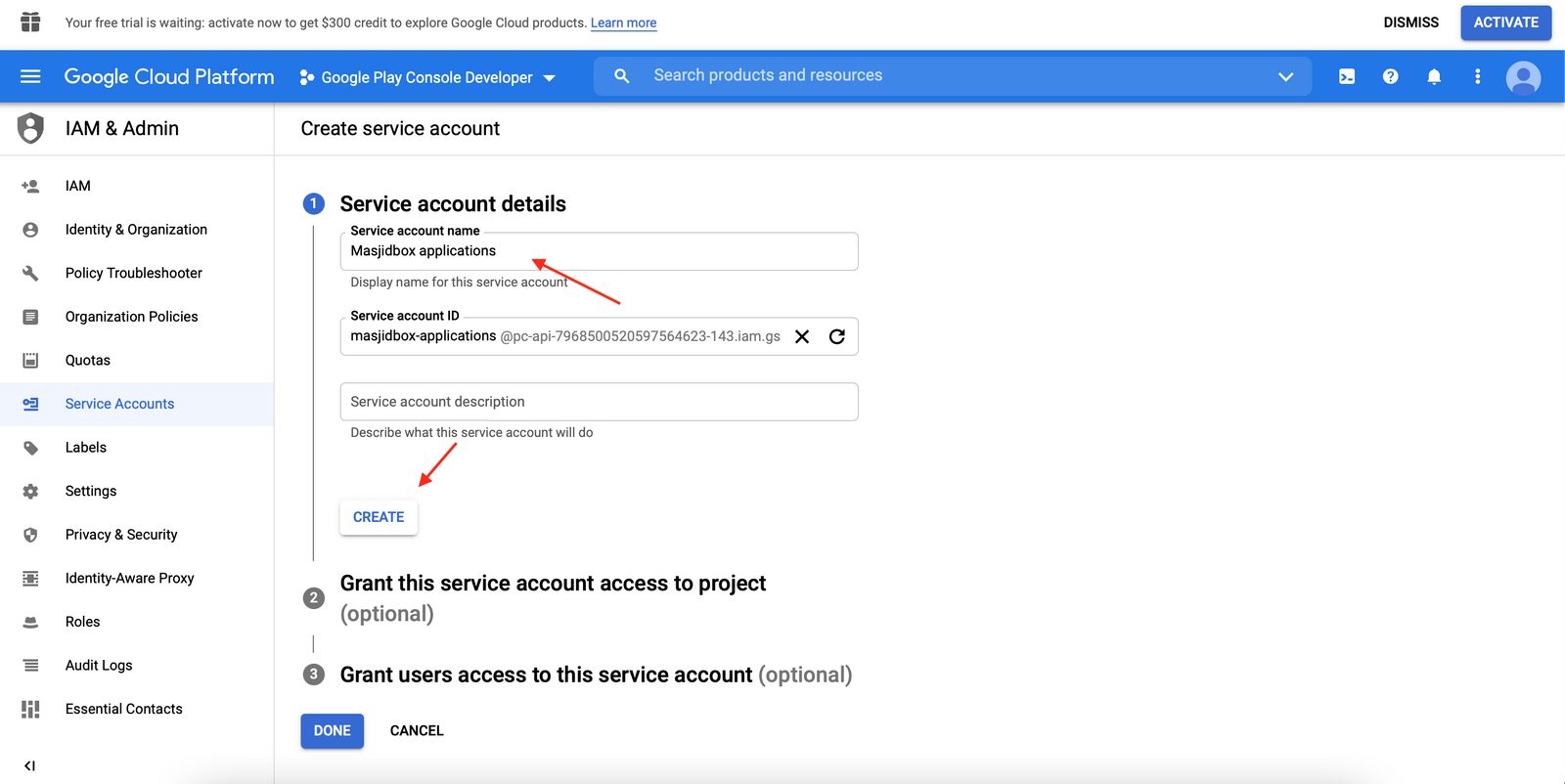
Enter the Service Account Name as Masjidbox Applications and click on Create and continue button
Click on Select a role box, search for Service Account User
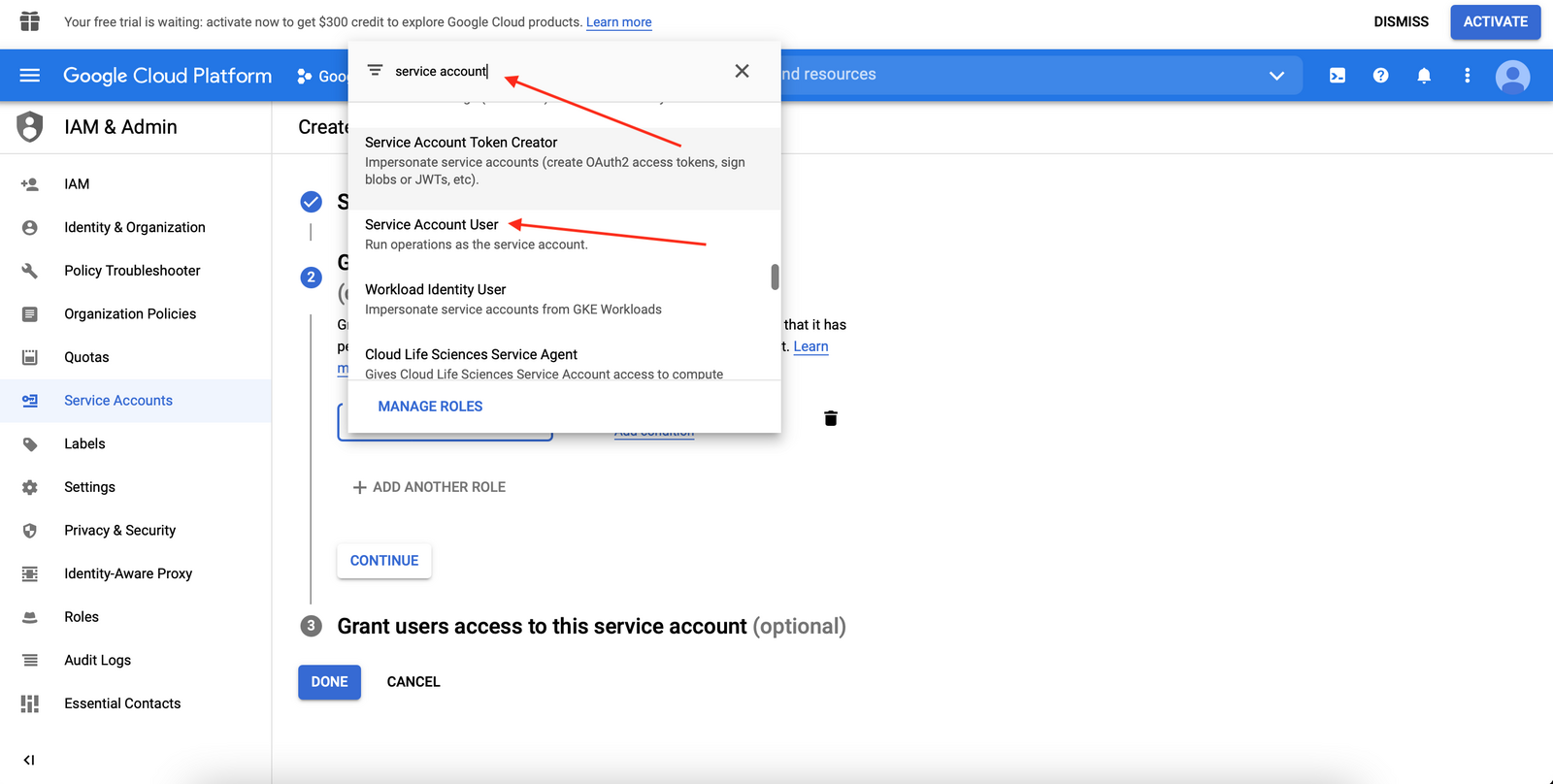
Click on Done button
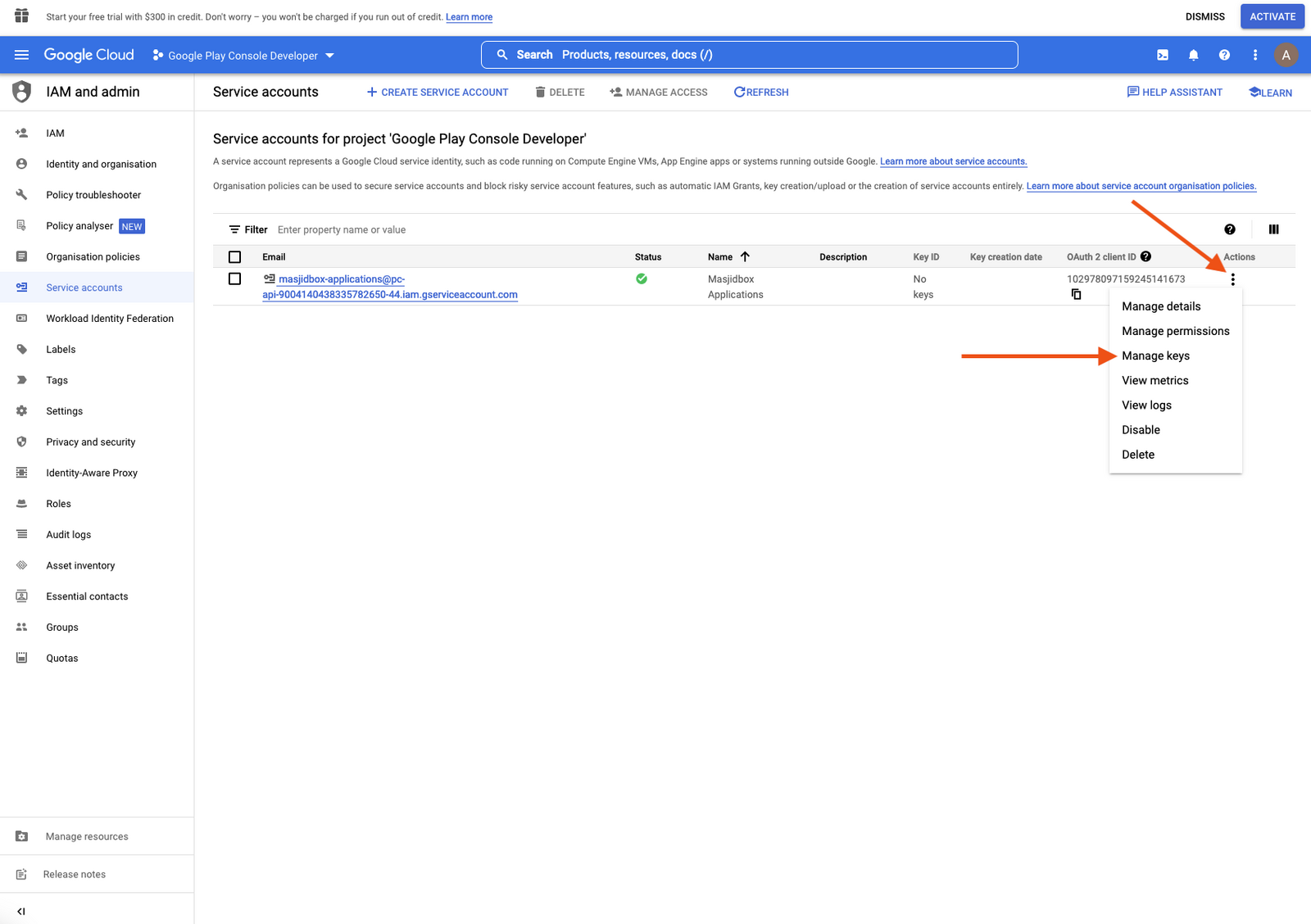
Click on the 3 dots and then Manage keys button
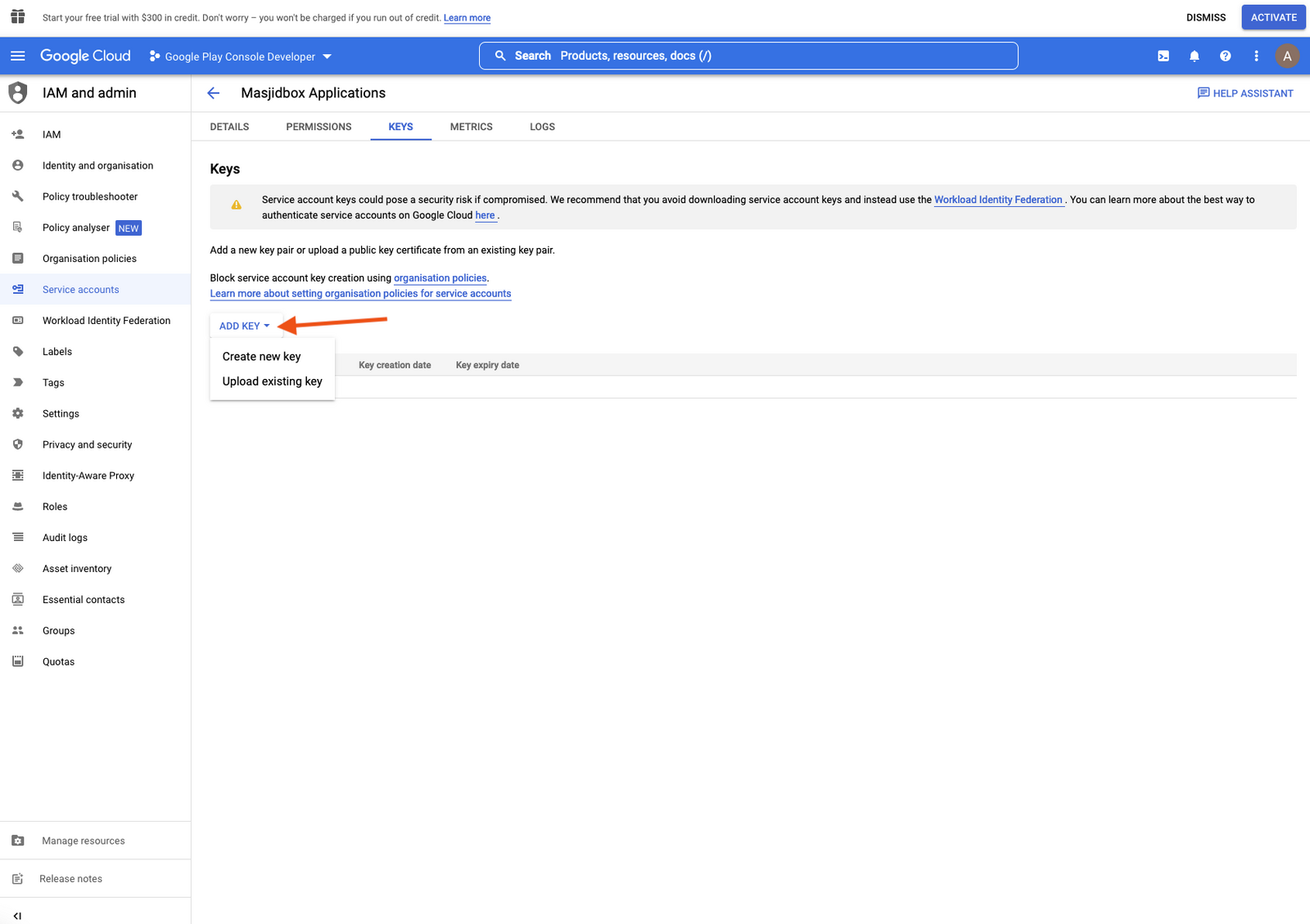
Click on Add Key and then Create new key
Click on JSON Checkbox then click the Create button
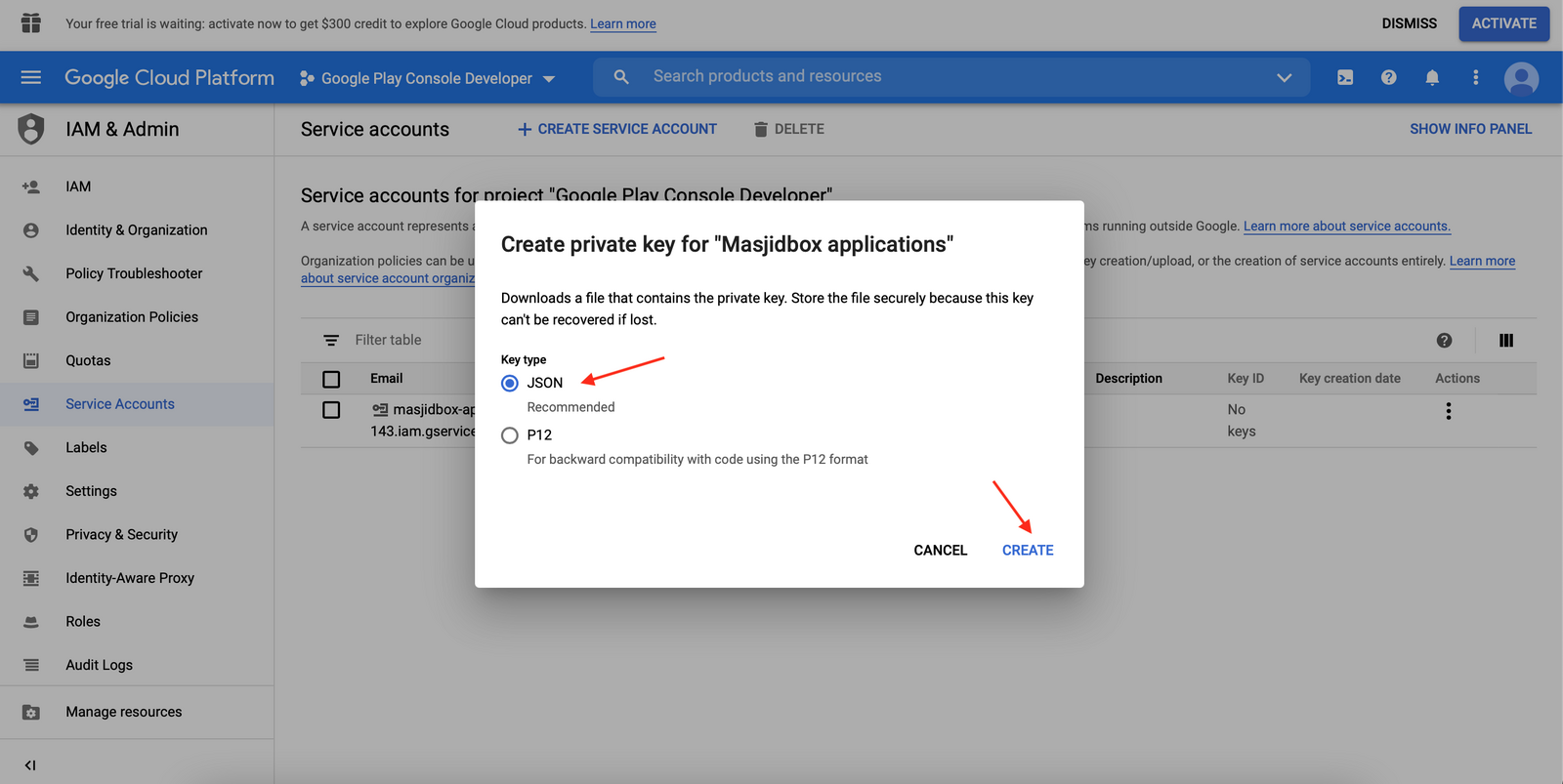
Upon clicking the Create button, a file will be downloaded to your computer and you can click the Close button
The filename will be similar to api-8451553770874210560-341072-a17ed5811f72.json but it will be unique for you
Go to the Settings page on Masjidbox. Settings Page
Upload the file in Android Settings section.