
Understanding the Wifi Sync Status Badge
The Wifi Sync Status badge shows whether your Masjidbox Screen player's WiFi settings match your dashboard configuration. This helps you identify when settings changes need to be applied.
Finding the Badge
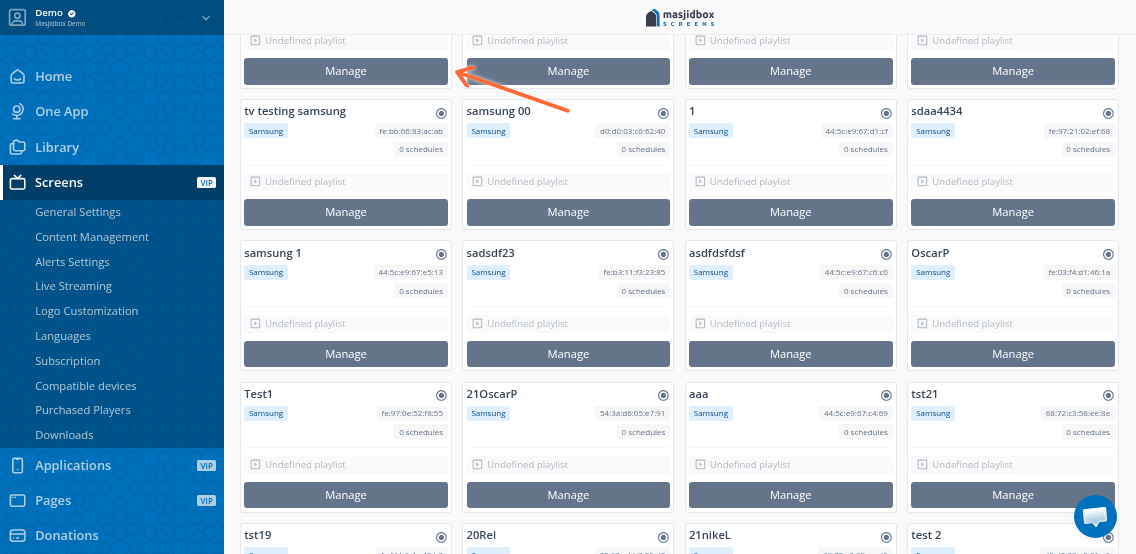
The badge appears on your screen's detail page. From your Screens dashboard, click Manage on any device to view its details and sync status.
Badge States
The badge displays one of two states:
Synced (green): Your device is using the WiFi network configured in the dashboard. Everything is up to date.
Out of Sync (red): Your device's WiFi settings differ from the dashboard configuration. The changes you made haven't been applied yet.
The badge only appears if you've configured WiFi for your device. Ethernet-only devices won't show a sync status.
Re-syncing Your Device
When the badge shows "Out of Sync," your device needs to reconnect to apply the new WiFi settings:
Connect your Masjidbox Screen player to your router using an Ethernet cable
Go to your device's detail page in the dashboard
Click the green Reboot button
Wait for the device to restart and come back online
Once online, disconnect the Ethernet cable—your device will now use the updated WiFi settings
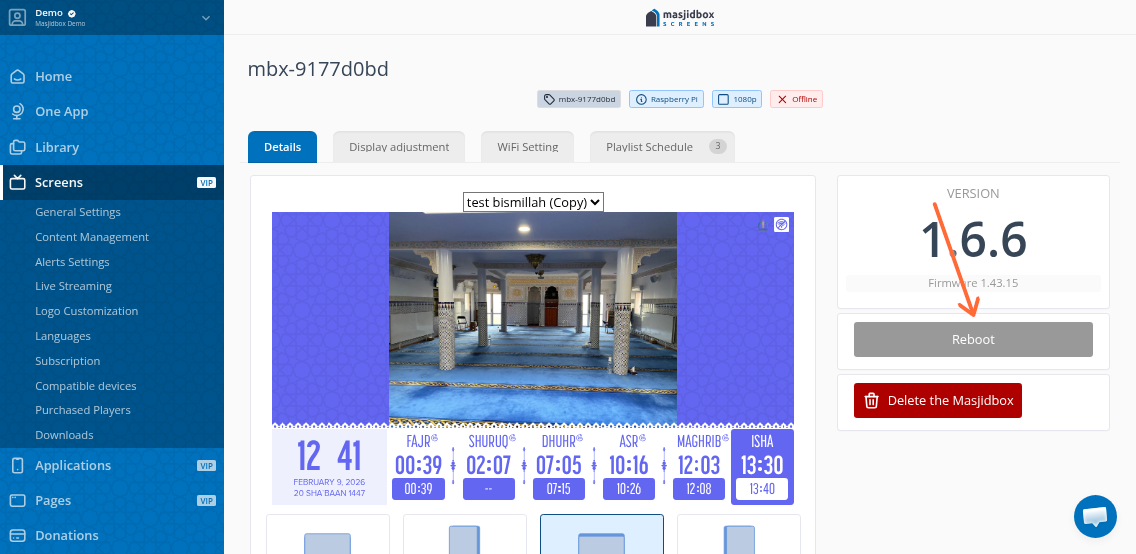
The Reboot button is only available when your device is online. Make sure the Ethernet cable is connected before attempting to reboot.
After Changing WiFi Settings
When you update WiFi settings in the WiFi Settings tab, the dashboard reminds you to connect to Ethernet and restart:
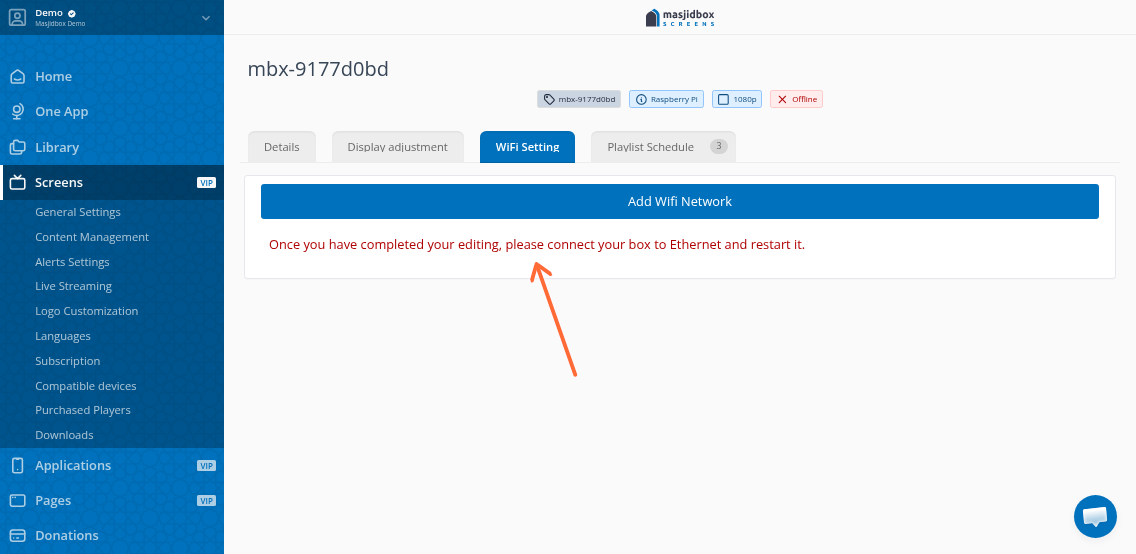
Your changes won't take effect until you complete the Ethernet connection and reboot process.
Troubleshooting Connectivity Issues
If your device remains out of sync or offline after rebooting:
Check your internet connection: Verify your router has active internet access
Verify WiFi password: Ensure you entered the correct password in the WiFi Settings tab (WPA2 requires 8-63 characters)
Wait for cache to clear: Content updates can take 5-10 minutes to appear. For faster updates, clear your browser cache
Check WiFi signal strength: Move the device closer to your router or use a WiFi extender if the signal is weak
Your Masjidbox Screen works offline and will display cached content (prayer times, announcements) even without internet. However, new content and settings won't update until connectivity is restored.
For initial WiFi setup instructions, see How to setup WiFi.