
Configure donation QR codes for Masjidbox Screens
Display donation QR codes on your digital signage so worshippers can easily scan and give. The donation component automatically generates a QR code linked to your active donation campaign.
Before you begin: You'll need an active donation campaign in Masjidbox Donations with Stripe configured, and a Silver or Global plan to use donation components on Screens.
Add a donation QR code to your playlist
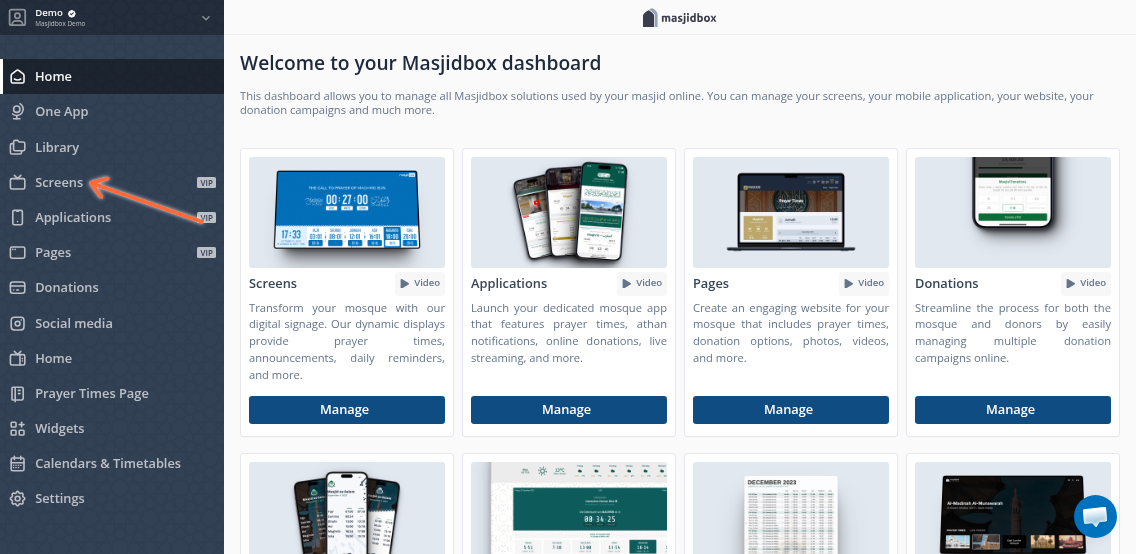
Navigate to Screens from your Masjidbox dashboard.
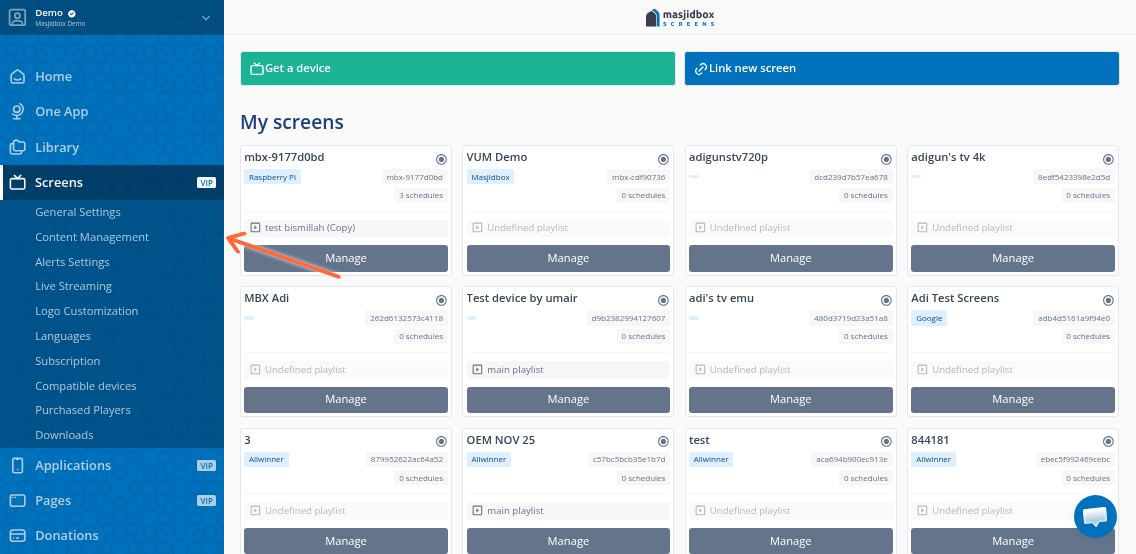
Go to Content in the left sidebar.
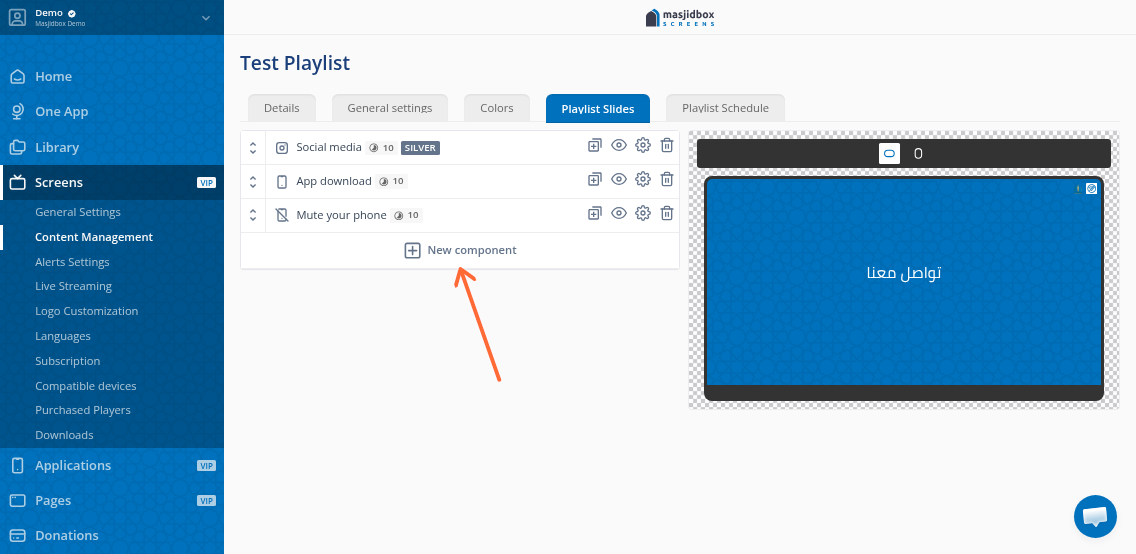
Select the playlist you want to edit and click Add Component.
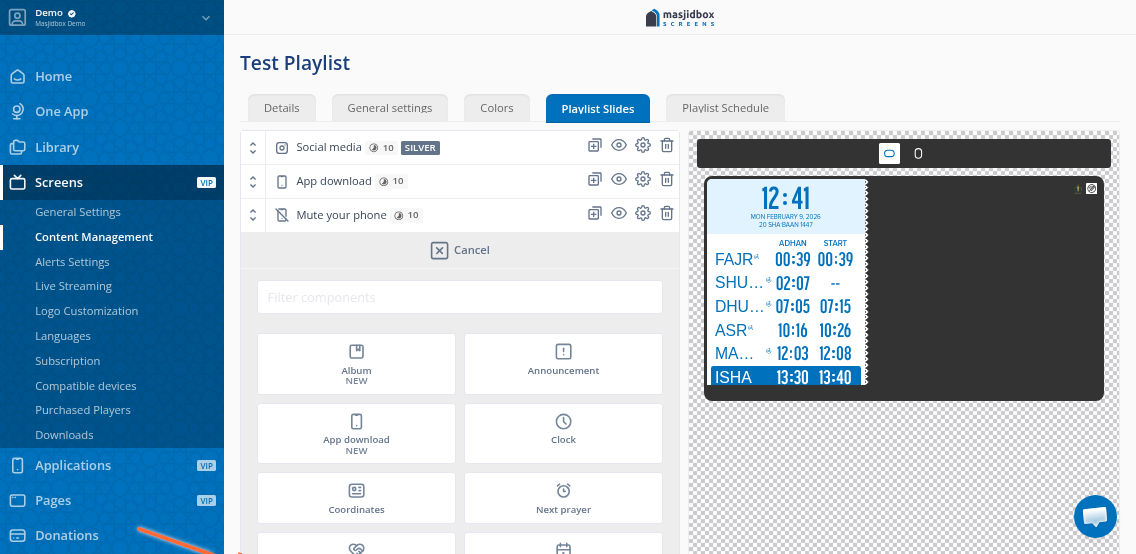
Choose Donation from the component list.
Configure the donation component
Select your active donation campaign from the dropdown. The QR code generates automatically and links directly to that campaign.
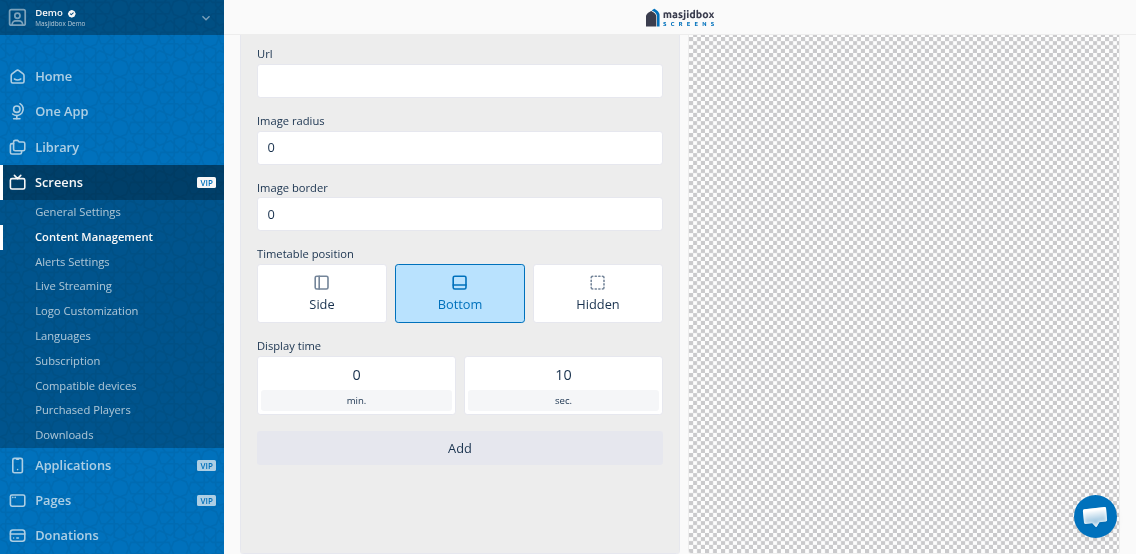
The component displays your campaign progress bar alongside the QR code. Set the slide duration to control how long it appears in rotation.
Customize colors and styling
To adjust the appearance of your QR slide, go to the Colors tab in your playlist settings. Choose from preset themes (Free plan) or use the custom color picker (Silver/Global plans).
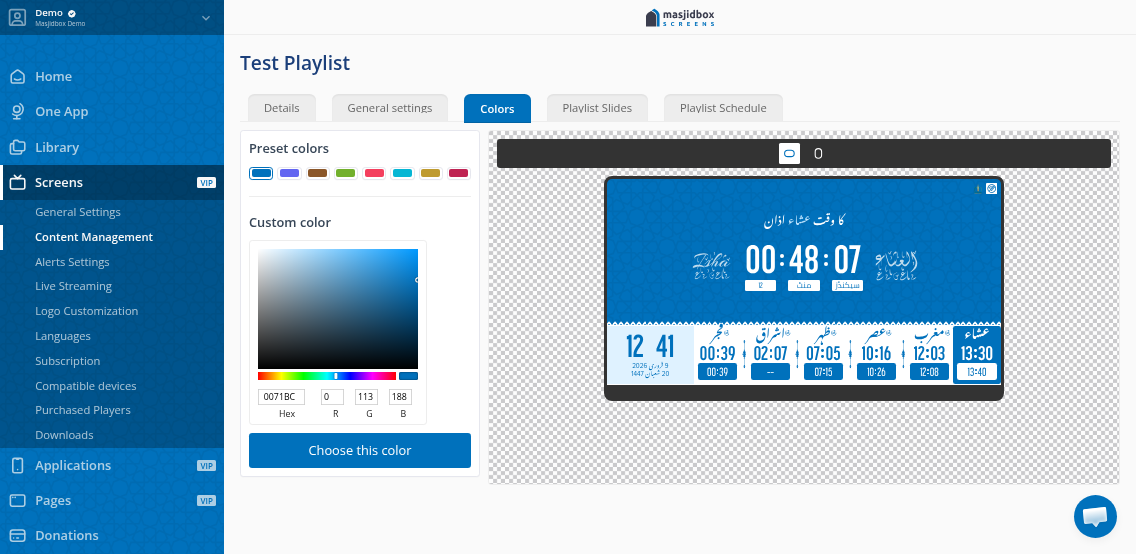
Color changes apply to all components in your playlist, including the donation QR slide.
Sync to your screens
Save your playlist. Screens connected to the internet will automatically sync the updated content. This may take a few minutes, depending on cache settings.
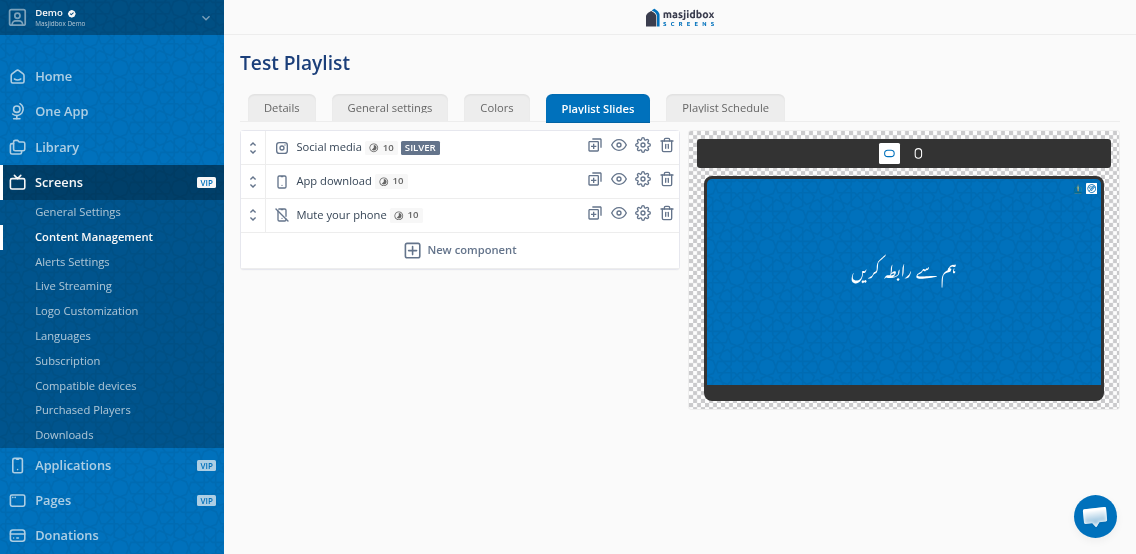
If your screen doesn't update after 10 minutes, try rebooting the device or clearing the cache from your Screens dashboard.
For more details on adding and managing playlist content, see How to add content to your playlist. To customize your overall screen theme, check How to change the colors and theme of your screen.