
Configure recurring donation scheduling
Recurring donations let your community set up automatic monthly, weekly, or custom schedules to support your mosque. This guide shows you how to enable recurring options for your campaigns and track ongoing contributions.
Before you begin: You'll need a validated Stripe Connect account. Go to Donations in your dashboard to complete Stripe setup if you haven't already.
Enable recurring donations for a campaign.
Navigate to Donations > Campaigns in your dashboard sidebar.
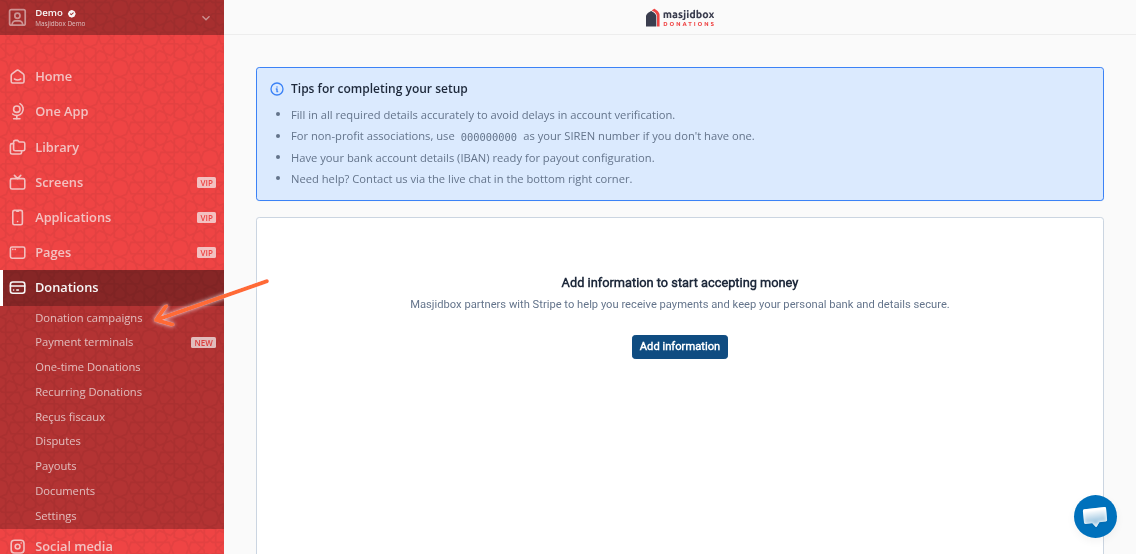
Find the campaign you want to enable recurring donations for and click the edit icon.
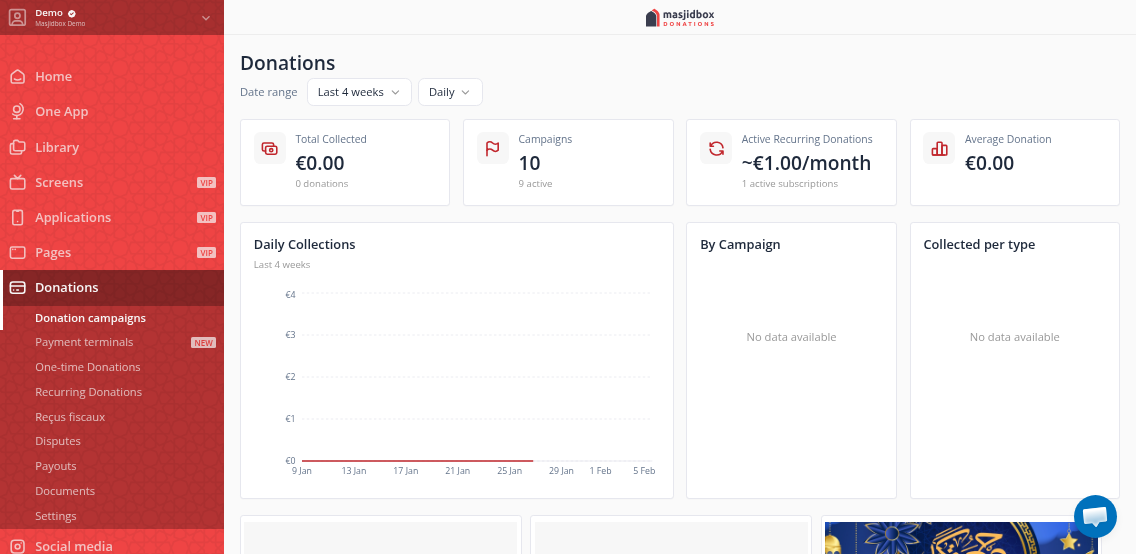
Scroll to the Recurring donations settings section and toggle on Activate recurring donations.
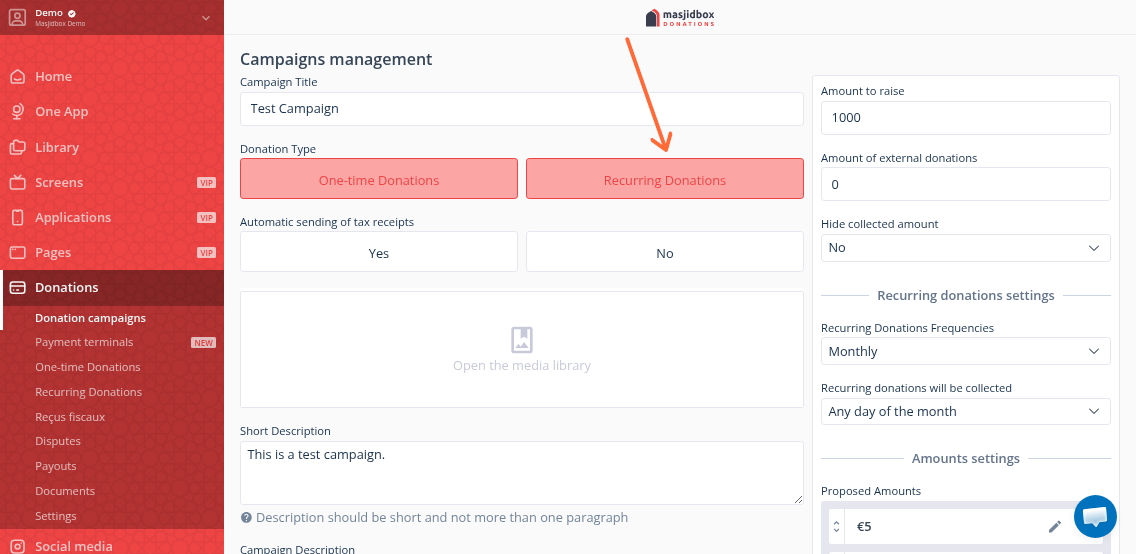
Configure frequency options
Once activated, select which frequencies you want to offer donors:
Daily – Donation processes every day
Weekly – Choose specific days (e.g., "on Fridays") or any day
Monthly – Choose specific dates (e.g., "1st day of the month") or any day
Yearly – Annual recurring donation
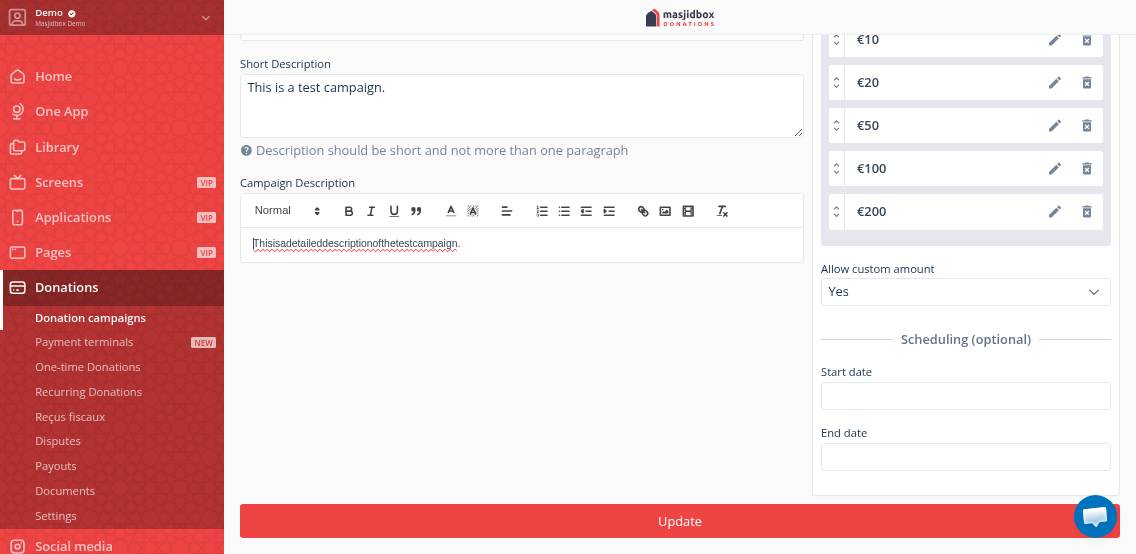
For weekly and monthly options, you can specify which days donations should be processed. Select the frequencies that make sense for your community and click Save.
Most mosques enable Monthly and Weekly options. Monthly aligns with regular commitments, while weekly works well for Jumu'ah attendees.
Enable recurring for in-person terminals.
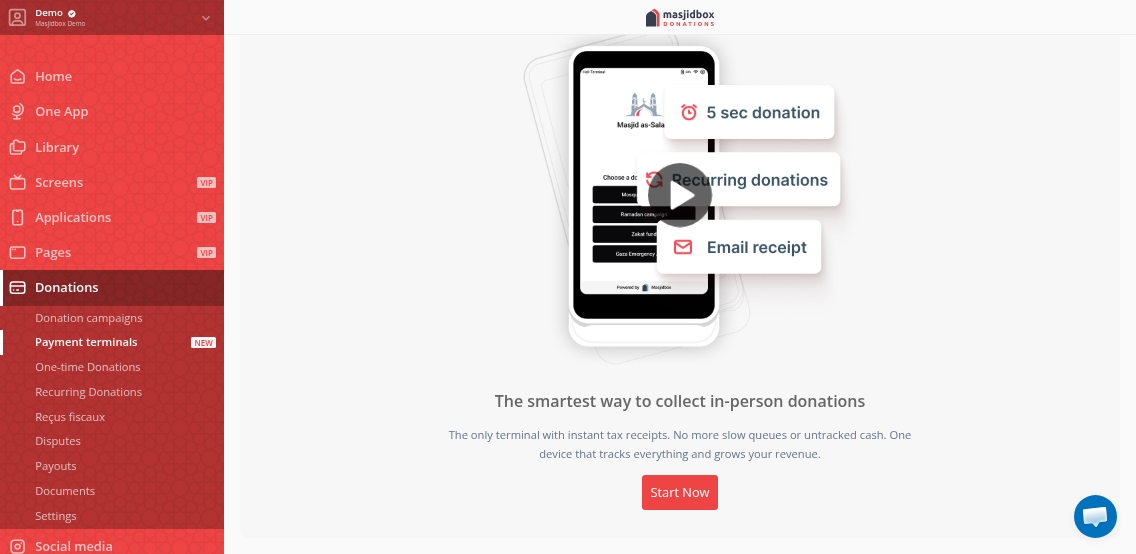
To accept recurring donations via Stripe Terminal (in-person card readers), go to Donations > Terminals and select the Recurring Payments tab. Toggle on Enable recurring donations on terminals.
How donors manage their recurring donations
When donors set up a recurring donation through your campaign page, they select their preferred frequency and amount. After completing payment, they receive an SMS or email with a management link.
Donors can use this link to:
View their recurring schedule and next payment date
Update payment method or amount
Pause or cancel their recurring donation
If a donor loses their management link, they can request a new one by entering their email or phone number on your donation page.
If you disable recurring donations on a campaign, all active subscriptions for that campaign will be paused. Re-enable to resume processing.
Track recurring donations and revenue.
View all active recurring donations by navigating to Donations > Recurring Donations. You'll see a list of all subscribers with their contact info, amount, frequency, and status (Active, Paused, or Cancelled).
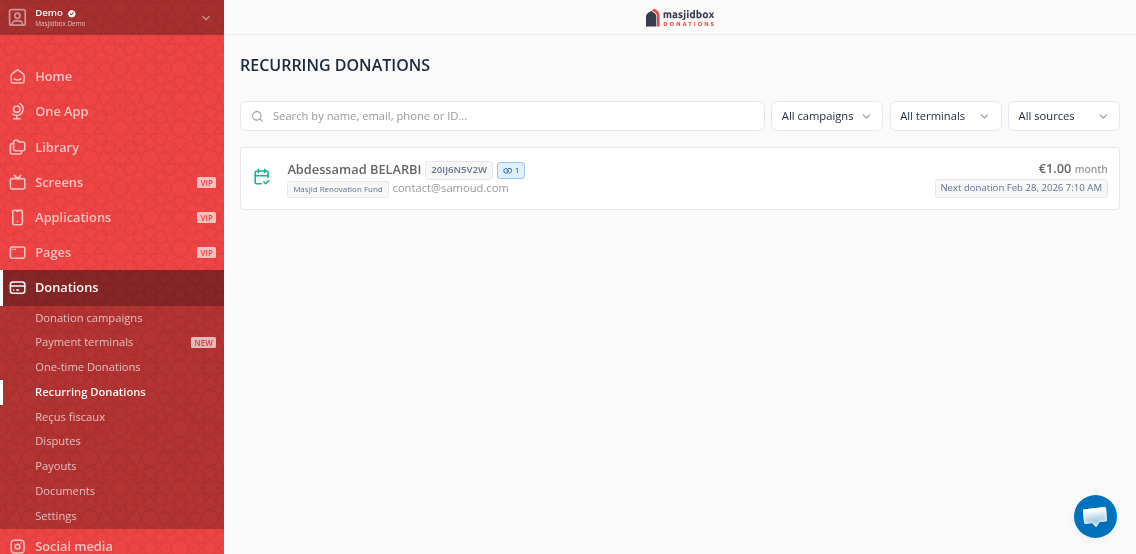
Click any row to view subscription details and payment history. You can search and filter by name, email, phone, campaign, or subscription ID.
On your main Donations dashboard, you'll see analytics cards showing:
Active Recurring Donations – Total number of active subscriptions
Monthly Recurring – Estimated monthly recurring revenue (MRR)
Charts breaking down collections by type (one-time vs. recurring) and frequency
Use the date range selector to analyze trends over time and forecast future revenue.