
How to add pictures and videos to your Screen playlist
The Library stores all your media files (pictures and videos) that you can reuse across playlists. Here's how to upload media and add it to your Screen display (Silver Users Only).
Step 1: Upload media to the Library
Navigate to Library in the left sidebar.
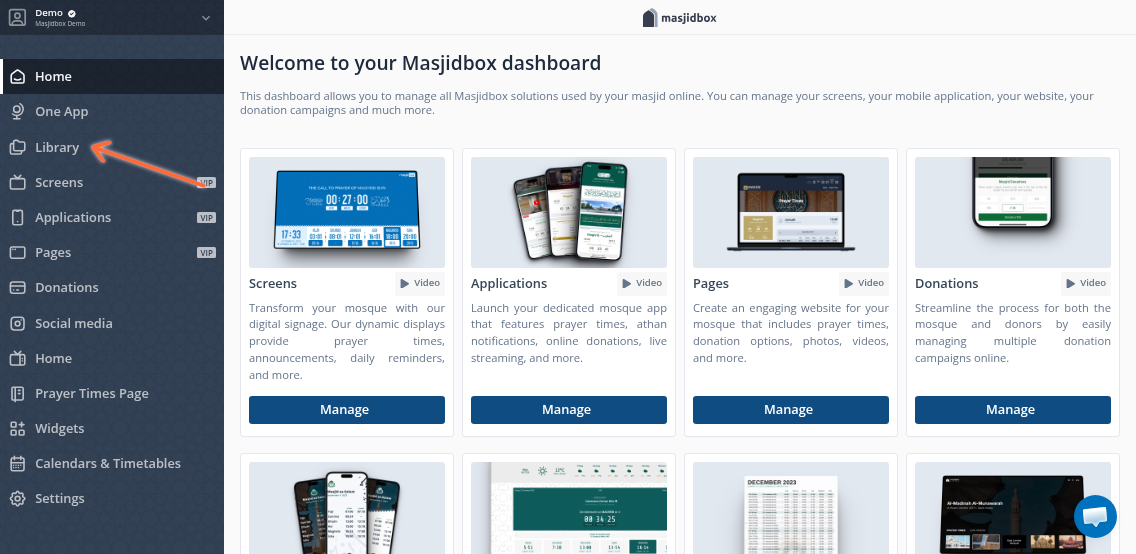
In the Media Library, choose the Pictures or Videos tab. Drag and drop your files into the upload zone, or click to browse and select files.
Videos must be in MP4 format. After upload, videos will automatically encode for optimal playback.
Once uploaded, your media appears in the Library with thumbnails. You can edit titles and add tags for easier organization.
Step 2: Add media to your playlist
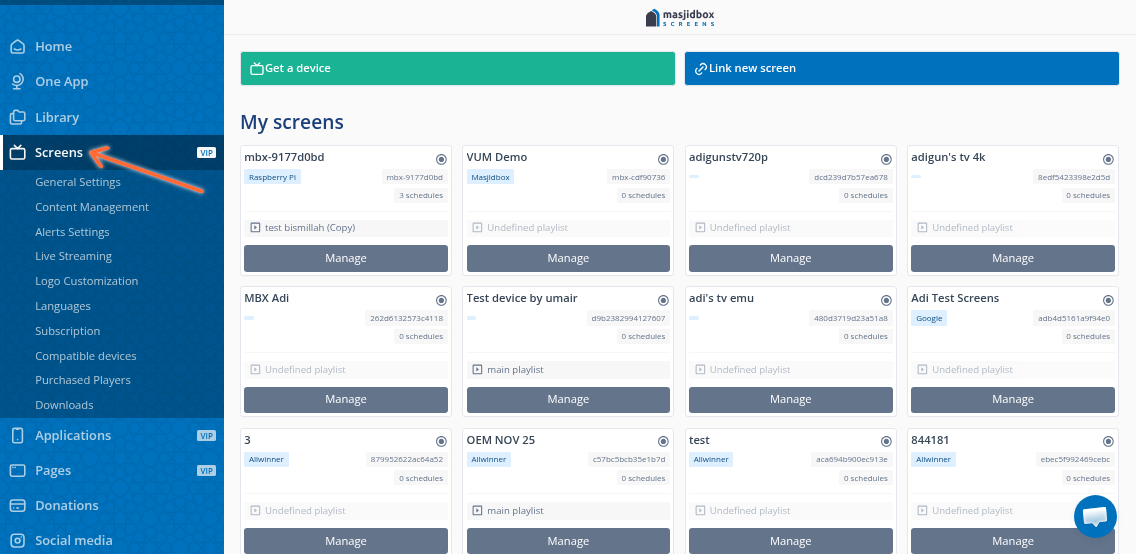
Go to Screens in the sidebar, then select the box you want to update.
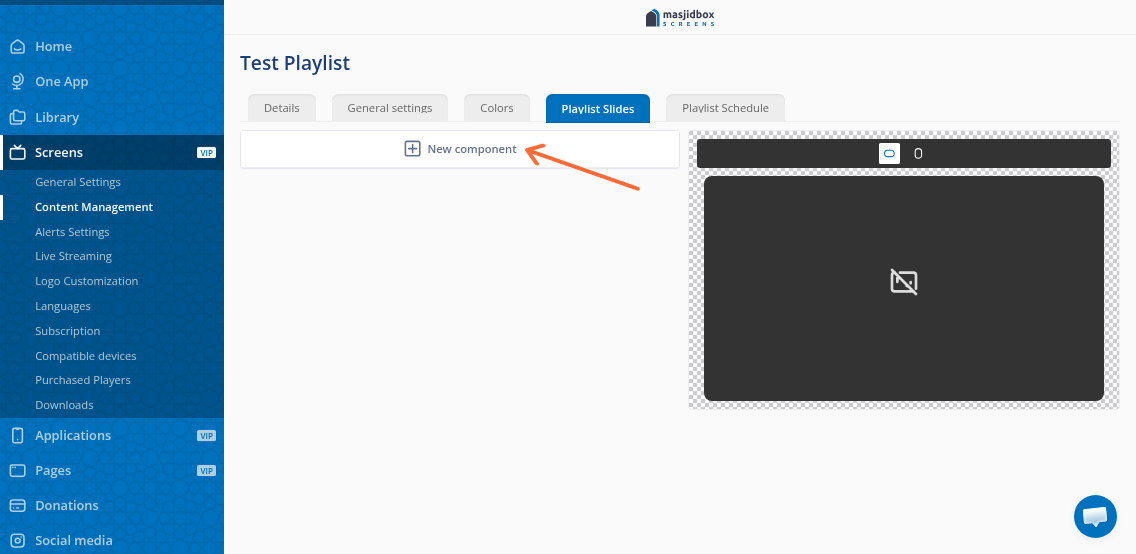
Open the playlist schedule or create a new playlist. Click New component to add a slide.
Now look for the picture/video. Select the picture or video you uploaded, then click Confirm Selection.
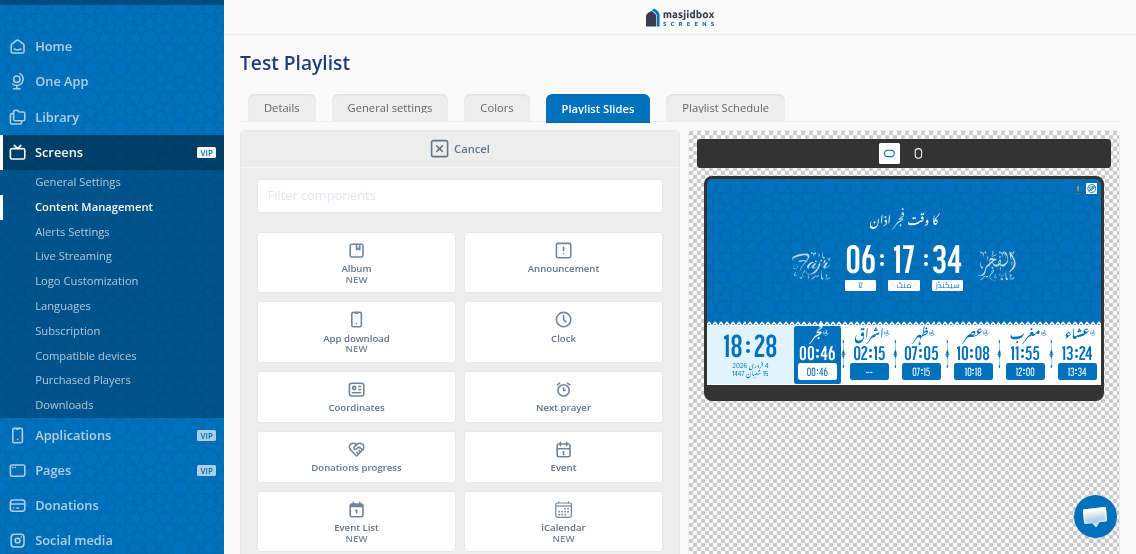
Choose the Media aspect Mode, Timetable position, and the Display time
Save the playlist. Your media now appears in the preview section and will display on your TV screen.
Upload media to the Library once, then reuse it across multiple playlists and boxes without re-uploading.
Related articles
For a video walkthrough, see How to add content to your playlist.
To control when playlists appear, see How to Schedule a Playlist.