
How to create and schedule announcements
Announcements let you display important messages on your Screens and in your mobile app. Creating an announcement is a two-step process: first, you create it in the Library, then you add it to your Screens playlist or app.
Announcements are available on the Silver plan and above. You'll need admin access to create announcements.
Create an announcement
Start by creating your announcement in the Library:
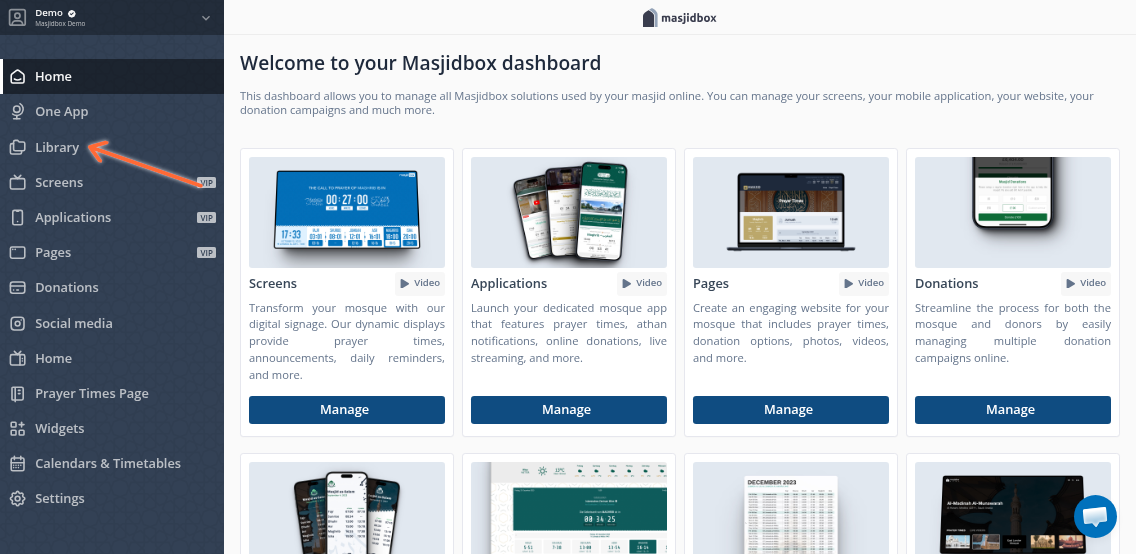
Go to the Library in the left sidebar
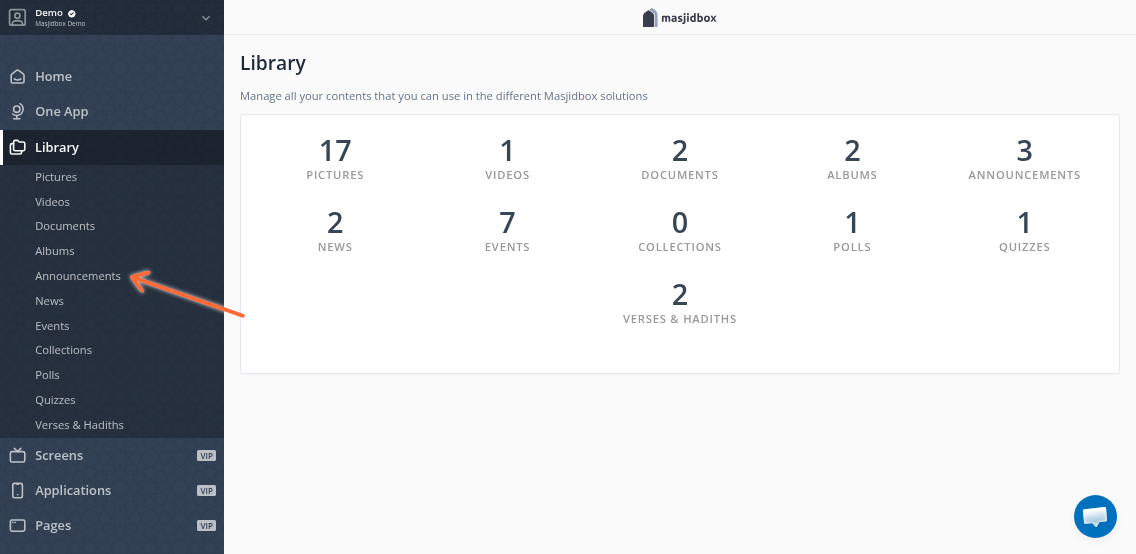
Click Announcements
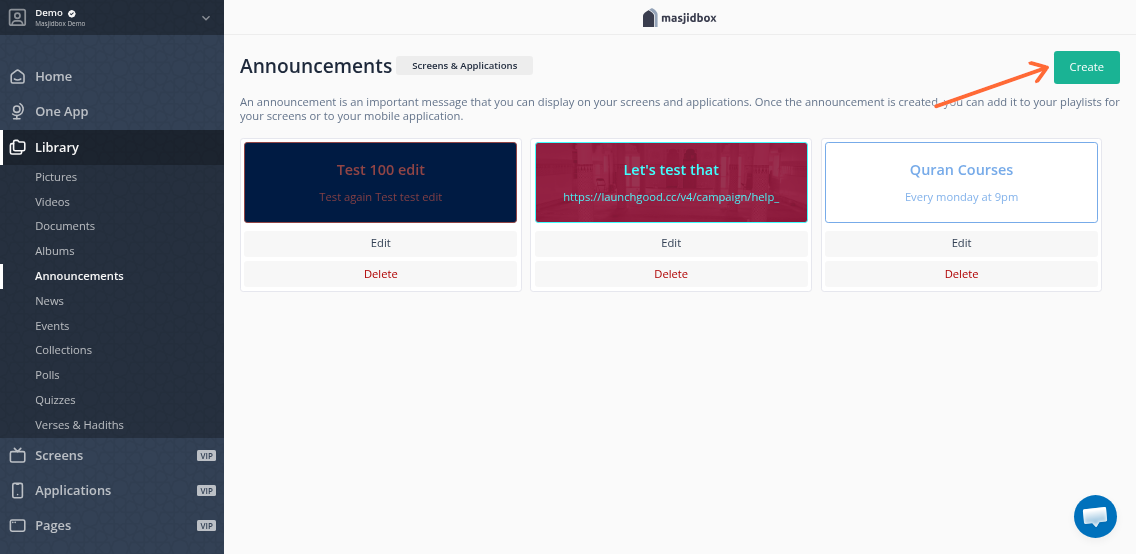
Click the Create button
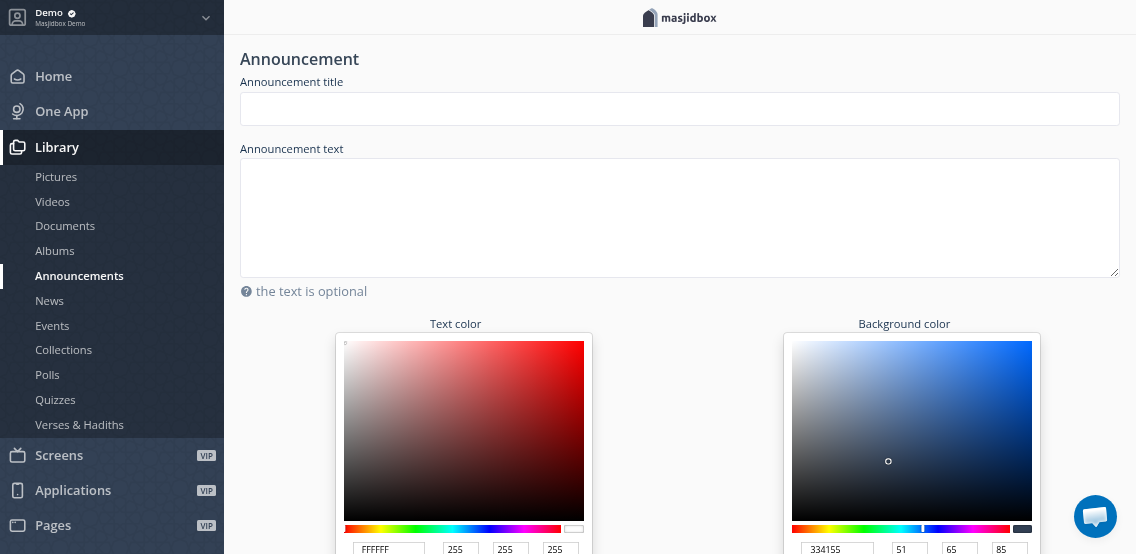
Enter a Title and Text for your announcement
Click Create
Announcement text uses fixed formatting and is displayed centered on screens. To show images alongside your announcement, add a separate Image component to your playlist.
Add announcement to Screens
After creating your announcement, add it to a Screens playlist:
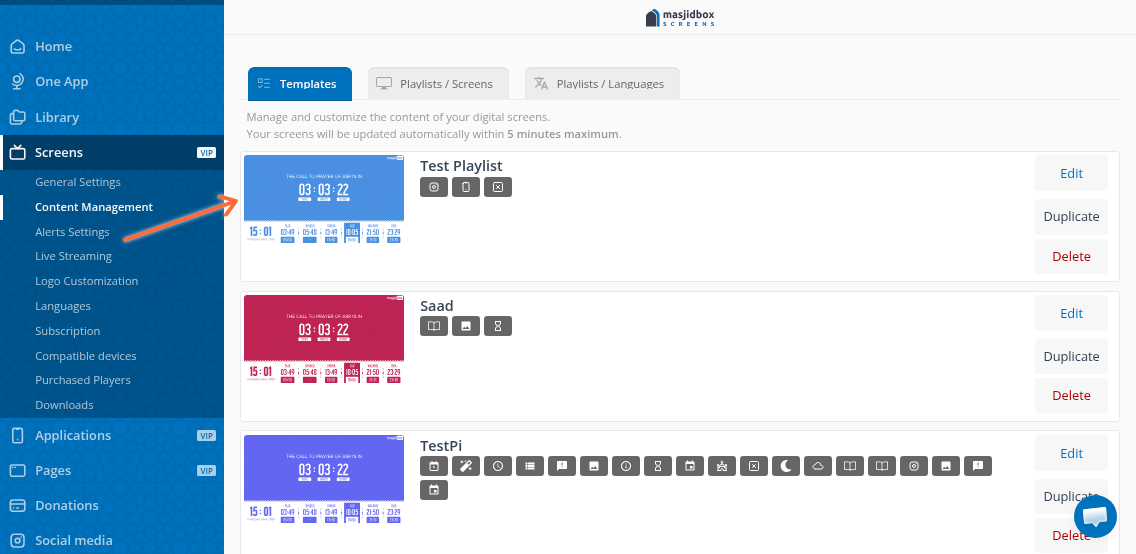
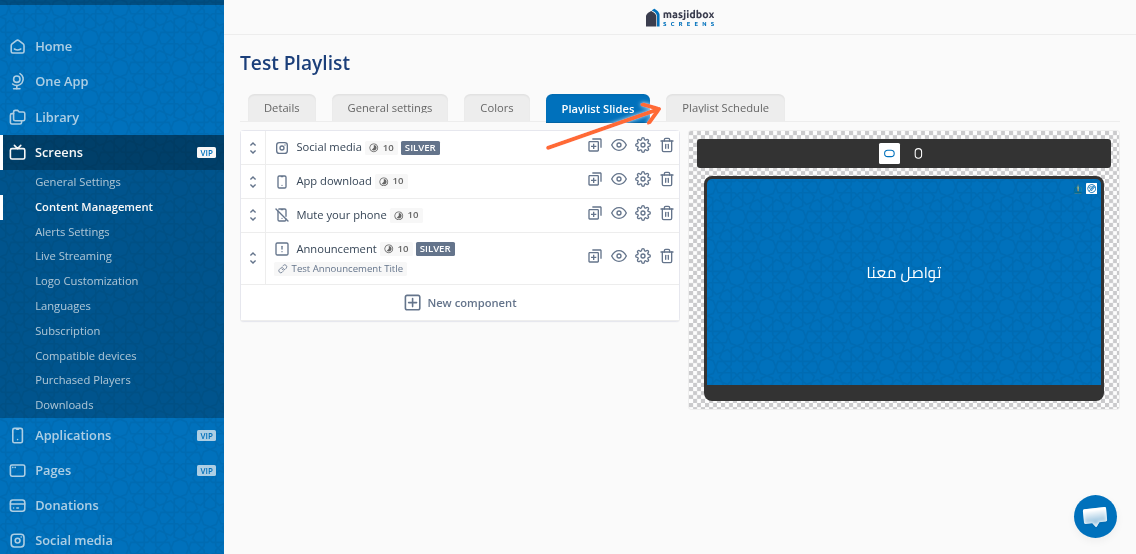
Go to Screens > Content Management
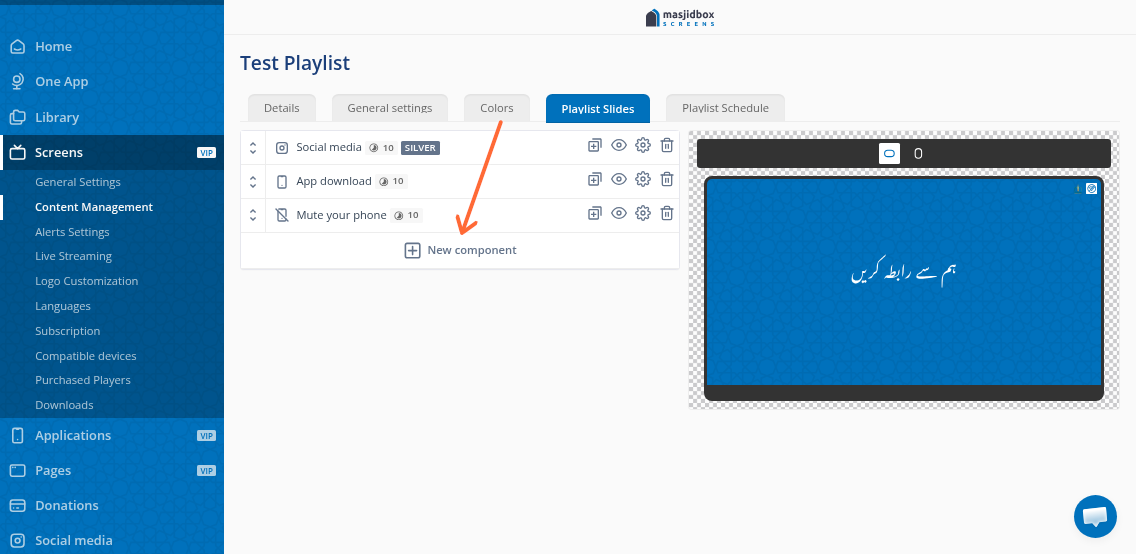
Click the playlist or template you want to edit
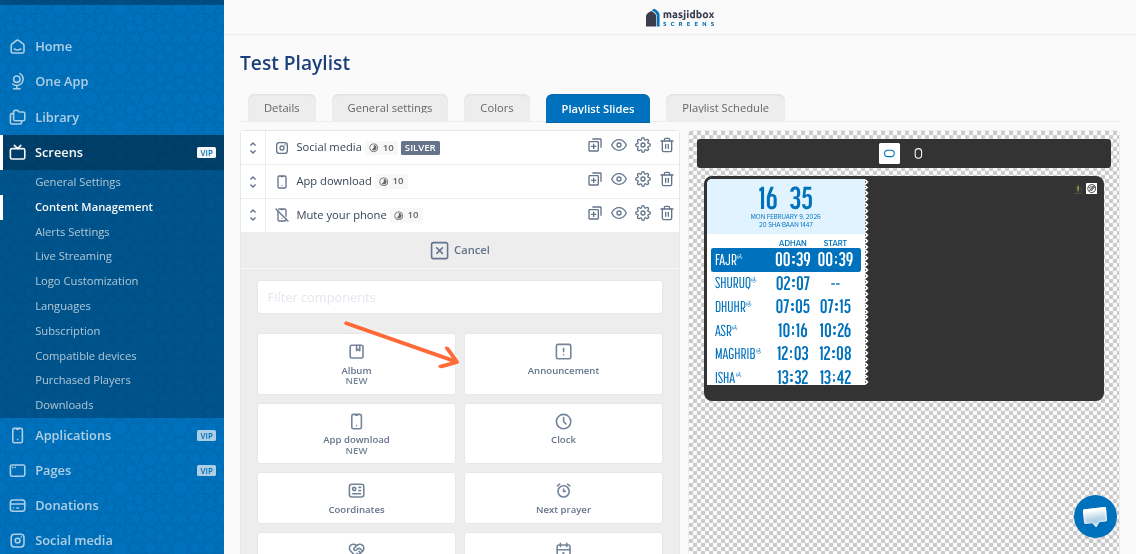
Click Add component
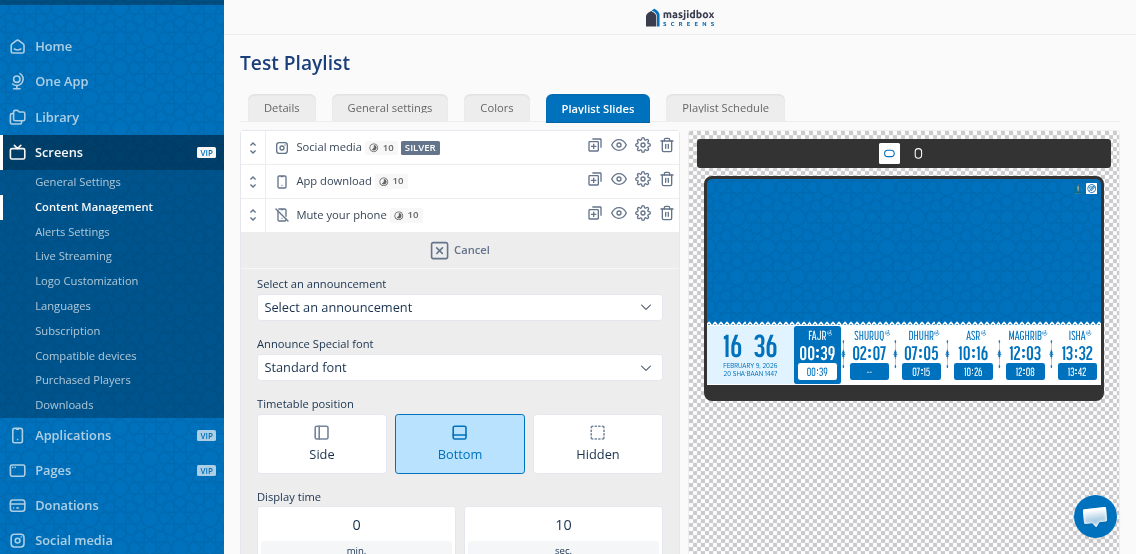
Select Announcement from the component list
Choose your announcement from the library
Schedule your announcement
Schedule when your announcement displays by configuring the playlist schedule:
In the playlist editor, scroll to the Playlist schedule section
Set your schedule options:
Time-based: Display during specific hours (e.g., 2-3 PM)
Date ranges: Show only between certain dates
Recurring: Repeat on specific days (e.g., every Friday)
Prayer-relative: Display before or after prayer times (e.g., 10 minutes before Athan)
Select which screens should show this playlist
Save your changes
Changes sync to screens within a few minutes. If your announcement doesn't appear, try rebooting the screen device.
For more on playlist scheduling, see How to Schedule a Playlist.